.png)


Internal Linking Strategy: Boost Your Webflow SEO Now
A smart internal linking strategy is the architectural blueprint that shows Google how your content is related and which pages are most important. It’s not about randomly scattering links; it's a deliberate plan to guide both users and search engines through your Webflow site, distributing authority and boosting your rankings.
Why Internal Linking Is Your SEO Superpower
Think of your Webflow site as a well-organized library. Without clear signposts—your internal links—visitors and search engine crawlers can get lost, unable to find your most valuable content. A solid strategy connects your pages logically, creating a network that improves the user experience and signals your expertise to Google.

This guide provides a practical framework, moving from auditing your current links to building a scalable process. It's designed specifically for Webflow users looking to turn their content into a powerful ranking asset.
The Core Benefits of a Strong Linking Structure
An effective internal linking strategy does more than just connect pages; it builds a foundation for sustainable SEO growth. When you get it right, it directly influences how search engines see and rank your site.
Here’s a breakdown of the key components you'll be building:
Core Components of an Effective Internal Linking Strategy
ComponentObjectiveKey MetricSite ArchitectureCreate a logical, hierarchical structure that’s easy for users and crawlers to navigate.Crawl DepthLink Equity FlowDistribute authority from high-value pages to important, but less-linked, pages.PageRank/URL RatingContextual LinkingPlace links within relevant content to help users and search engines understand page context.Click-Through Rate (CTR)Anchor Text OptimizationUse descriptive, keyword-relevant anchor text to signal the linked page's topic.Keyword RankingsUser Experience (UX)Guide visitors to related, helpful information, increasing their time on site.Dwell Time, Bounce Rate
These pillars work together to create a powerful, interconnected site that both users and Google will love.
The primary benefits you’ll see are:
- Improved Crawlability and Indexing: Internal links create pathways for Googlebot to discover and index all your content, especially new or deeper pages that might otherwise be missed.
- Distribution of Page Authority: Links pass authority (often called "link equity") from your powerful pages—like your homepage or a viral blog post—to other important pages, giving them a ranking boost.
- Enhanced User Experience (UX): A logical link structure helps visitors find related information easily, keeping them on your site longer and reducing bounce rates—both positive signals for SEO.
- Increased Topical Authority: By interlinking content around a central theme, you signal to Google that you are an expert on that topic, which can lead to higher rankings for a cluster of related keywords.
A well-planned internal linking strategy can improve a website's overall performance by 5-10%. Google's own John Mueller has even called internal linking "super critical for SEO," so you know it's a big deal.
Actionable Steps For Webflow Site Owners
For Webflow site owners, managing this process is straightforward once you have a system. You can easily add contextual links within Rich Text Fields in your CMS Collections or create sitewide links using Symbols. The goal is to make linking a natural part of your content workflow, not an afterthought.
Here's a quick tutorial on adding a link within a Webflow CMS blog post:
- Navigate to the CMS Collection for your blog.
- Open the blog post you want to edit.
- In the Rich Text Field, highlight the text you want to become the link (your anchor text).
- A formatting toolbar will appear. Click the link icon.
- In the pop-up, choose 'Page' to link to another page within your site. Select the desired page from the dropdown. This method is best because it automatically updates if you change the page's URL slug later.
- Save your changes and publish.
This approach is crucial across different site types. To see how these principles apply to e-commerce, for example, you can read about the importance of internal linking for boosting Shopify SEO. In this guide, we’ll focus on the actionable steps that deliver real results without getting lost in technical jargon.
Auditing Your Current Webflow Links
Before you can build a better internal linking strategy, you have to know what you're working with. Think of an internal link audit as a health check for your Webflow site—it shows you what’s working, what's broken, and where the hidden opportunities are. This isn't just about finding errors; it's about getting a clear map of your site's architecture so you can make smarter decisions.
The goal here is to understand your current link structure. Which pages are your authority hubs? Which ones are floating in isolation? Where are the dead ends? This audit gives you the baseline you need to move forward with confidence.
Kicking Off Your Link Audit
The fastest way to get a complete picture is to run a site crawl. Tools like Ahrefs or Semrush are perfect for this. They crawl your website just like Google does and spit out detailed reports on just about everything, including your internal links.
Once you run a site audit, you'll get a dashboard full of data. Don't get overwhelmed. For this task, you want to zoom in on the reports that deal specifically with internal linking. This is where the gold is.
You’re primarily looking for a few key things:
- Broken internal links: These are 404s that kill the user journey and waste link equity. Easy fixes, big impact.
- Orphaned pages: These are pages with zero incoming internal links, making them practically invisible to search engines.
- Link distribution: This shows you which pages are getting the most link love, which tells you what your site thinks is important.
Uncovering Orphaned and Underlinked Pages
One of the biggest wins from an audit is finding your orphaned pages. These pages are published on your site, but no other page links to them. They're stranded on an island, and Google’s crawlers, which rely on links to get around, have a tough time ever finding them.
A huge part of this process involves understanding and resolving orphan pages, as they can seriously harm your site's ability to get crawled and rank. Your audit tool will have a specific report for this. Once you have that list, your job is to find logical, relevant pages to link from so you can bring them back into the fold.
Also, keep an eye out for pages with just one or two internal links. They aren't technically orphaned, but they might as well be. These "underlinked" pages aren't getting enough internal authority to compete. Make a list and prioritize building more links to them from other relevant articles and pages.
Finding High-Value Pages That Need Support
Your audit will also highlight your MVPs—the pages with the most backlinks from other websites. These pages hold the most authority, and it's a huge mistake to let them hoard it.
Pull a list of your top 10-20 pages with the most external backlinks. Now, look at where those pages are linking internally. Are they just pointing to the homepage or your contact form? That’s a massive missed opportunity.
This is where you can get strategic. Add a few contextual links from these power pages to important product pages, service pages, or other key content you want to rank. It's one of the fastest ways to pass authority and give other pages a much-needed boost in the SERPs.
Think of your high-authority pages as power stations. Your internal links are the transmission lines that carry that power to other parts of your site, lighting up pages that would otherwise remain in the dark.
Webflow-Specific Audit Actions
While the big SEO tools give you the 10,000-foot view, it pays to do some quick spot-checks right inside Webflow.
- Check CMS Collection Links: Jump into your CMS Collections—your blog, case studies, etc. Open up a few Rich Text Fields. Are you actually linking to other relevant posts or your core service pages? This is low-hanging fruit for most sites.
- Review Symbols for Sitewide Links: Take a look at your Symbols, especially the nav and footer. Make sure those links are correct and point to your most important pages. A single broken link in your footer Symbol can create hundreds of broken links across your site instantly.
- Actionable Tutorial: Using 301 Redirects in Webflow: If your audit uncovers broken internal links pointing to old or deleted pages, don't just remove the link. Fix it at the source. In your Webflow project settings, go to Hosting > 301 Redirects. Add the old broken path (e.g.,
/old-blog-post) in the "Old Path" field and the new, correct URL in the "Redirect to Path" field. This ensures any lingering link equity is passed to the new page.
By combining a tool-based audit with these hands-on Webflow checks, you'll walk away with a crystal-clear, prioritized action plan. This to-do list—from fixing broken links to rescuing orphaned content—is the foundation for your new, much more effective, internal linking strategy.
Designing Your Topic Cluster Framework
Alright, now that you’ve done the clean-up work on your existing links, it's time to get strategic. We're moving from maintenance to architecture. The topic cluster model is, hands down, one of the best ways to organize your content, build topical authority, and show search engines you know your stuff. It turns your website from a random collection of posts into a well-organized library.
The whole thing boils down to two parts: pillar pages and cluster content. Your pillar page is the big, comprehensive hub on a broad topic that’s central to your business—think of it as your ultimate guide. The cluster content is a collection of more focused articles that dig into the subtopics, and each one links back to that main pillar.
For a Webflow agency, a pillar page could be "The Ultimate Guide to Webflow E-commerce," with cluster posts covering things like "Optimizing Webflow Product Pages" or "Integrating Stripe vs. PayPal in Webflow." This structure cleverly channels all the SEO juice from those detailed posts back to your core page.
Identifying Your Pillar Pages
First things first: you need to figure out what core topics your business has to own. Pillar pages should map directly to the main problems you solve for customers. These aren't just beefed-up blog posts; they're foundational assets that represent a major part of what you do.
To get the ball rolling, ask yourself these questions:
- What are our main services or products? Each big-ticket item you offer is probably a contender for a pillar page.
- What broad topics are our ideal customers searching for? Go for the high-level concepts, not super-niche, long-tail queries.
- Can we realistically write at least 5-10 detailed articles about this? If the answer is no, the topic might be too narrow to be a true pillar.
A simple way to start is just to map your core services to potential pillar ideas. If you offer "Webflow SEO Services," that’s a perfect candidate. From there, you can build out a whole universe of related content. This is a massive part of building an effective site architecture for SEO that makes sense to both Google and your human visitors.
The flowchart below shows how a good audit can uncover opportunities for new content clusters by flagging high-value pages, orphaned content, and broken links.
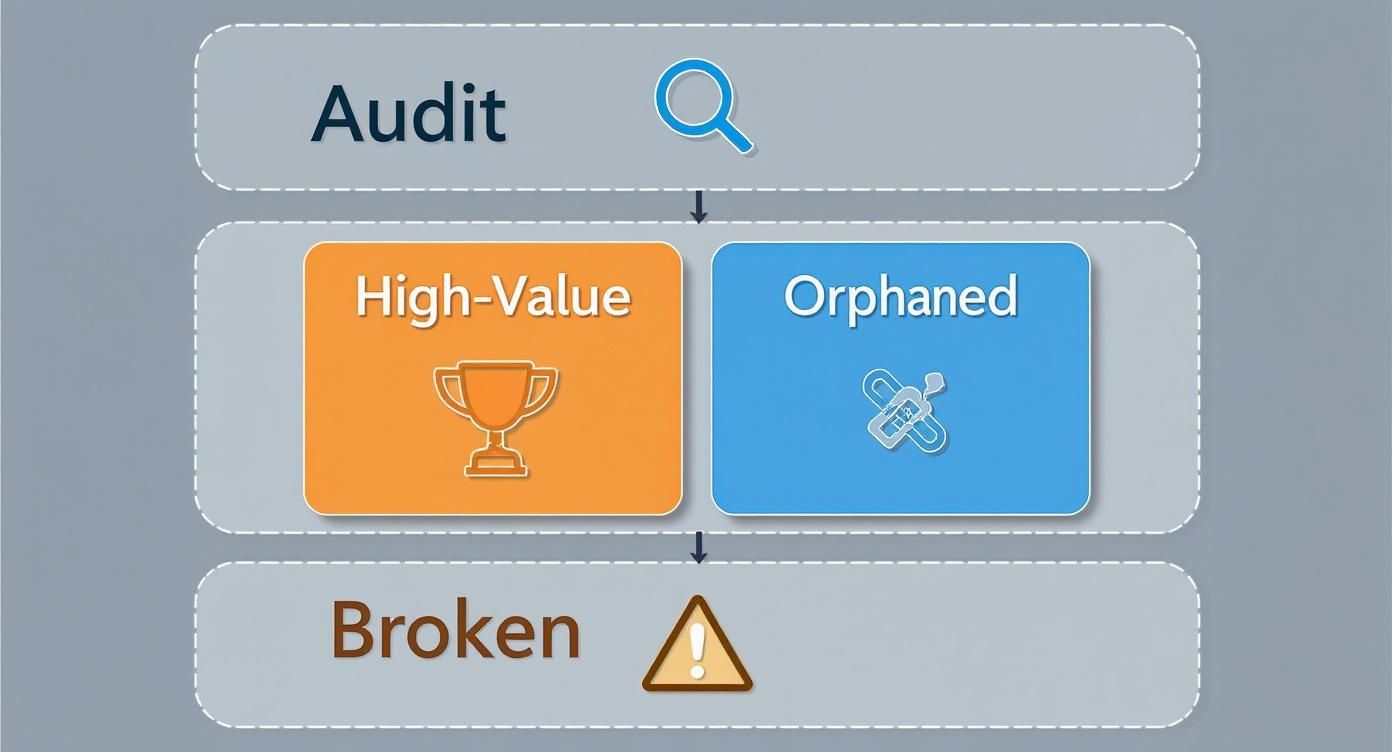
This process really helps you see which pages need more internal link support (great candidates for new cluster content) and which of your high-authority pages could serve as the foundation for a new pillar.
Mapping Out Cluster Content
With your pillars defined, it's time to brainstorm the supporting cast—your cluster topics. These articles dive deep into specific facets of your pillar topic. The goal here is to cover your main subject from every conceivable angle, answering every question a potential customer might have.
Keyword research is your best friend at this stage. I like to fire up Ahrefs or Semrush to find long-tail keywords and "People Also Ask" questions related to my pillar topic. You're looking for subtopics with decent search volume that aren't brutally competitive.
Let's stick with our "Webflow E-commerce" pillar. That one topic could easily spawn a bunch of cluster posts like:
- How to set up custom shipping rules in Webflow
- The best Webflow apps for managing inventory
- A real-world comparison: Webflow vs. Shopify for small businesses
- A step-by-step guide to abandoned cart recovery in Webflow
This creates a self-reinforcing loop. The pillar page lends authority to the cluster articles, and in turn, all those detailed cluster articles signal back to Google that your pillar page is the definitive resource on the subject.
This whole approach just makes sense with how modern search engines operate. They want to rank sites that demonstrate deep expertise. A well-planned topic cluster framework is one of the clearest ways to prove you're an expert, not just another site with a blog. It’s not just an SEO tactic; it's about becoming the go-to resource for your audience.
Weaving Your Web: Placing Links and Nailing Anchor Text
Alright, you've got your topic cluster map. Now for the fun part—actually getting in there and placing the links. This is where the strategic blueprint becomes a tangible reality, and you start physically connecting your content and choosing the exact words to do it. Every link you add from here on out should be deliberate, serving as a clear signpost for both your readers and the search engines.
It’s important to remember that not all links are created equal. The real workhorses of your internal linking strategy are the contextual links—the ones you place right in the body of your content. They're the strongest signal you can send to Google about how two pages relate to each other.
Of course, other links have a role to play too:
- Navigational Links: These are your main menu links in the header. They're critical for user experience and telling Google, "Hey, these pages are our top priority."
- Footer Links: Your footer is great for secondary but still important pages, like your "About Us" or "Privacy Policy." They offer sitewide access but don't carry the same contextual punch as an in-content link.
Mastering Anchor Text for Maximum Impact
Anchor text is the clickable text of a link, and it's a huge clue for Google. Think of it as a direct recommendation. You're telling the search engine, "The page I'm linking to is about this specific thing." A solid anchor text strategy is all about balancing clarity for the user with relevance for SEO.
You've got a few types of anchor text in your toolkit:
- Exact-Match: Using the literal keyword you want the destination page to rank for. For example, using "Webflow SEO checklist" to link to your checklist page.
- Partial-Match: A more natural-sounding variation that still includes your keyword. Something like, "download our complete Webflow SEO checklist."
- Branded: Simply using your company's name. For us, that might be "Block Studio's guide to internal linking."
- Generic: Vague phrases like "click here" or "read more." Just… don't. They offer zero SEO value and are a missed opportunity.
Exact-match anchors are potent, but you have to be careful. Overdo it, and your site can look spammy. The key is to create a healthy, natural-looking mix, leaning heavily on partial-match and branded anchors for most links.
The data on this is pretty clear. One study I came across found that pages with just one exact-match anchor from an internal link pulled in at least five times more traffic than pages that had none. That's a massive difference. There's a direct, measurable relationship between specific anchor text and performance. If you're a data nerd, you can read the full research about these findings to see the numbers yourself.
A Practical Anchor Text Strategy
So how do you get this balance right without driving yourself crazy? Here’s a good rule of thumb: Make sure your most important pillar pages get a few high-value, exact-match anchors from their most relevant cluster content.
For everything else, stick to partial-match and branded variations. This approach sends those strong contextual signals exactly where they're needed most, without ever looking like you're trying to game the system. It's a smart, sustainable way to build topical authority over time.
How to Add Links in Webflow
If you're working in Webflow, adding these links is baked right into the CMS. Most of the time, you'll be doing this inside a Rich Text element on a blog post, case study, or another Collection page.
Here’s the quick and dirty guide:
- Open the CMS Item: Head into the Webflow CMS and open the post you're editing.
- Highlight Your Anchor Text: Select the phrase you want to link.
- Click the Link Icon: You'll see the little chain-link icon in the Rich Text toolbar. Click it.
- URL: The go-to for pasting a full URL, especially for linking to static pages.
- Page: This is the best option for linking between CMS Collection pages (e.g., blog post to blog post). It creates a dynamic link, so if you ever change a page's slug, the link will update automatically. Super handy.
- Email or Phone: Self-explanatory.
- Set to Open in a New Tab (Optional): Be cautious with this for internal links. Generally, you want to keep users in the same tab as they navigate your site to provide a smoother experience.
- As You Write: Before you hit "publish" on a new post in Webflow, run the draft through a content editor feature in one of these tools. It will often suggest internal links on the fly based on the text you've already written.
- For Your Existing Library: Run a site audit on a specific page. The tool will generate a list of other pages on your site that mention related keywords, giving you a ready-made to-do list for link building.
- Keyword Ranking Improvements: Keep a close eye on the pillar pages you've been working to support. Are their primary keywords climbing in the SERPs? Even a small jump from position 8 to position 5 is a huge win.
- Organic Traffic Growth: Pop into Google Analytics and check the organic traffic landing on pages that recently received a bunch of new internal links. You're looking for a sustained lift in sessions over a few weeks, not just a one-day spike.
- Pages Per Session: A well-linked site naturally encourages people to stick around and explore. If you see the average number of pages a visitor views per session start to creep up, it’s a great sign your links are successfully guiding them deeper into your content.
Managing Sitewide Links with Symbols
For any link that shows up everywhere—like in your main navigation or footer—Webflow Symbols are an absolute lifesaver. Instead of manually updating a link on every single page, you just edit the Symbol once.
To do this, pop over to the Symbols panel in the Designer, pick your navigation or footer Symbol, and edit the links right there. The changes will automatically roll out across your entire site. This keeps everything consistent and saves you an incredible amount of time. Honestly, using Symbols effectively is a cornerstone of any scalable internal linking strategy on Webflow.
Weaving Linking Into Your Everyday Workflow
An internal linking strategy that actually works isn't a "set it and forget it" project. It's something you have to bake right into your day-to-day content operations. Think of it like this: as your Webflow site grows, trying to manually keep track of which new post should link to which old one becomes a total nightmare. You'll miss things.
What you need is a system. A real process that takes the guesswork out of it and makes smart internal linking a habit for your whole team. Without a clear workflow, you're just going to create more orphaned pages and waste chances to pass authority between your articles. The whole point is to make the process so smooth that every single piece of content you publish automatically makes your site stronger.
The "Link-Up" System: A Simple Habit for New Content
I'm a big fan of a simple but incredibly effective method I call the "link-up" system. The core idea is that every time you publish something new, you immediately go back and build links to it from your existing, relevant pages. It’s not just about linking from your new post; it’s about creating a two-way street for that valuable link equity.
To put this into practice, here's a solid rule of thumb: for every new article you publish, find at least 2-3 older, relevant posts and add a link from them back to your new piece. It's just as important to do the reverse when you're updating old content—make sure you're linking out to your newer, relevant assets to keep your site's link graph from getting stale. If you want to dive deeper, you can discover more insights about operationalizing internal linking and really nail this down for your team.
This simple habit creates a powerful, continuous cycle. Your new content gets an immediate boost, and your older content stays woven into the fabric of your site's ever-changing structure.
Let Tools Do the Heavy Lifting for You
Let's be real: manually digging through your entire site to find linking opportunities is a massive time-sink. Thankfully, you don't have to. There are some fantastic tools out there that can do the grunt work by suggesting relevant, contextual links.
Tools like Ahrefs and Semrush are gold for this. Their content and site audit features can scan your articles, pinpoint keywords and topics, and then spit out a list of other pages on your site that would be perfect places to add an internal link. This honestly saves hours of work and often highlights connections you would've completely overlooked.
Here’s how you can fold these tools into your process:
Getting a scalable workflow in place turns internal linking from a chore you dread into a real strategic advantage. It builds consistency, saves a ton of time, and systematically strengthens your site's authority with every piece of content you ship.
Going Next-Level in Webflow with the CMS API
For teams with some dev resources, Webflow’s CMS API is where you can unlock some serious automation. You can build custom scripts that dynamically suggest—or even automatically insert—internal links based on rules you set up. A common one is matching tags or categories between different CMS items.
Picture this: you publish a new blog post and tag it "SaaS Marketing." A custom script could instantly scan your Webflow CMS for every other post with that same tag and serve up a list of linking opportunities right in your dashboard. It takes some upfront work, but for a site with a massive content library, this creates a ridiculously efficient and scalable internal linking strategy. It's the ultimate way to ensure your topic clusters are built out systematically without anyone having to lift a finger.
Tracking Your Success and Avoiding Common Mistakes
A strategy is only as good as its results. Without tracking your efforts, you're just guessing—hoping that your new internal linking approach is actually moving the needle. Fortunately, a few key tools and reports can give you a clear picture of what’s working and where you might need to adjust course.
Measuring the impact is all about connecting your actions to real outcomes. Did adding those links to an underperforming blog post finally boost its traffic? Did that new topic cluster start ranking for its target keyword? We need to answer these questions with data, not just gut feelings.
Pinpointing Your Key Performance Indicators
To see if your work is paying off, you have to know what to look for. Don't get lost in a sea of vanity metrics; focus on the handful that truly reflect the goals of internal linking.
Your go-to toolkit here will be Google Search Console and Google Analytics.
Don't expect to see results overnight. SEO is a long game, and it can take several weeks—sometimes a couple of months—for the full impact of your internal linking changes to show up in your rankings and traffic. Patience is key.
Using Google Search Console for Link Analysis
Google Search Console is absolutely essential for this. Head over to the "Links" report in the sidebar to get a direct look at your internal link structure straight from the source. The "Internal links" section shows you which of your pages are getting the most link love.
This report is a goldmine. Are your most important pillar pages and service pages right at the top of this list? If not, that’s a crystal-clear signal that you need to build more internal links pointing their way. It also reveals which pages might be hoarding link equity, giving you a perfect map of where to redistribute that authority.
Common Pitfalls That Can Sabotage Your Strategy
Knowing what not to do is just as important as knowing what to do. A few common missteps can easily undo all your hard work, so make sure you steer clear of these traps.
One of the most frequent mistakes I see is overusing the same exact-match anchor text. While specific anchor text is powerful, hammering the same phrase dozens of times for the same link looks spammy to search engines. Mix it up with partial-match, branded, and descriptive variations to keep things looking natural.
Another classic blunder is forgetting to update links when a URL slug changes. This is the fastest way to create a bunch of broken internal links, which are terrible for both user experience and SEO. Similarly, avoid link loops—where Page A links to Page B, which then links right back to Page A—as they can confuse crawlers and burn through your crawl budget.
Finally, always remember that user experience is paramount. A site that’s easy and enjoyable to navigate will keep visitors engaged longer, which is a powerful positive signal to search engines. For more on this, check out our detailed guide on mobile website optimization to make sure your site performs flawlessly on every device.
Still Have Questions? Let's Clear a Few Things Up
Even with a great plan in place, a few common questions always seem to surface when you start rethinking your internal linking. We get these a lot from Webflow site owners, so here are some quick answers to get you unstuck and moving forward.
How Many Internal Links Should I Add to a Page?
Honestly, there's no single magic number here. The real focus should always be on quality over quantity.
Instead of chasing a specific count, concentrate on adding links that genuinely help the reader and make sense in the context of the content. A solid rule of thumb is to make sure every new piece you publish gets links from at least 2-3 older, relevant posts on your site.
Do My Footer and Navigation Links Actually Help with SEO?
They absolutely do, but they play a different role than the links you place inside your content.
Sitewide links—the ones in your navigation and footer—are fantastic for telling search engines which pages are your most important, top-level assets. That said, contextual links placed within the body of your content pack more punch for showing the topical relationship between specific pages.
Some recent research suggests sitewide links have a bigger impact on large, high-authority sites. If you want to get into the weeds, you can read the full study on Traffic Think Tank and see how it might apply to your own site.
A smart strategy uses both. Use your navigation for core pages (like "Services" or "Contact") and use contextual links to weave your topic clusters together and pass authority between related articles.
Can I Reuse the Same Anchor Text?
You can, but you need to be strategic about it. It’s totally fine—and often a good idea—to use the same anchor text to link to the same page from multiple different articles.
What you want to avoid is using the exact same anchor text to link to two different pages. This sends mixed signals to search engines and can dilute the authority of both pages, leaving Google unsure which one is the real expert on that topic.
For more hands-on advice on content strategy and SEO, be sure to check out our Webflow SEO blog.
Ready to turn your Webflow site into a revenue engine? Block Studio LLC offers a unified growth package that combines design, development, SEO, and content to attract qualified traffic and convert visitors into customers. Get your custom growth plan today.