.png)


How to Build an SEO Strategy for Webflow That Drives Growth
A solid SEO strategy isn't about chasing vanity rankings. It’s about building a predictable engine that attracts qualified traffic and directly contributes to your bottom line. To do that, we need to start by defining our goals, auditing where we are now, and then mapping out a plan to get there.
Aligning SEO with Your Business Goals
Before you even think about keywords or content, you need a clear destination. I’ve seen too many companies pour resources into SEO that generates impressive-looking traffic charts but does absolutely nothing for sales, leads, or revenue. A successful strategy drives the right kind of traffic—the kind that grows the business.
This all starts with translating those high-level company objectives into specific, measurable SEO key performance indicators (KPIs). It's a conversation you need to have with your leadership team.
From Business Objectives to SEO KPIs
What’s the real goal here? If the company wants to push a new software feature, then your SEO focus should be on ranking for bottom-of-funnel keywords and obsessing over conversion rates on those landing pages. If the goal is breaking into a new market, you'll be tracking things like organic visibility, share of voice, and branded search volume.
This process gives your SEO work a clear purpose. Instead of a vague goal like "increase organic traffic," you get concrete, actionable targets:
- Increase Marketing Qualified Leads (MQLs) from organic search by 20% next quarter.
- Boost organic revenue from our product pages by 15% in the next six months.
- Drive 50 qualified demo requests each month from non-branded, problem-aware search terms.
If you're new to this, it's worth getting a firm grip on What is Search Engine Optimization to understand how all these pieces connect. This foundational knowledge is key to making sure every action has a strategic purpose.
Auditing Your Current Performance
Once you know where you’re going, you need to know where you're starting from. A baseline audit shows what’s already working, where the quick wins are, and just how much ground you need to cover. This isn't just about finding technical glitches; it's about spotting strategic opportunities. A big part of that is knowing who you're even trying to attract. For more on that, our guide on how to create buyer personas is a great place to start.
A common mistake I see is teams skipping the audit and jumping straight into tactics. That's like starting a road trip without checking the fuel gauge or looking at a map. You might end up somewhere, but it probably won't be where you wanted to go.
This simple three-step process is the bedrock of a good strategy.
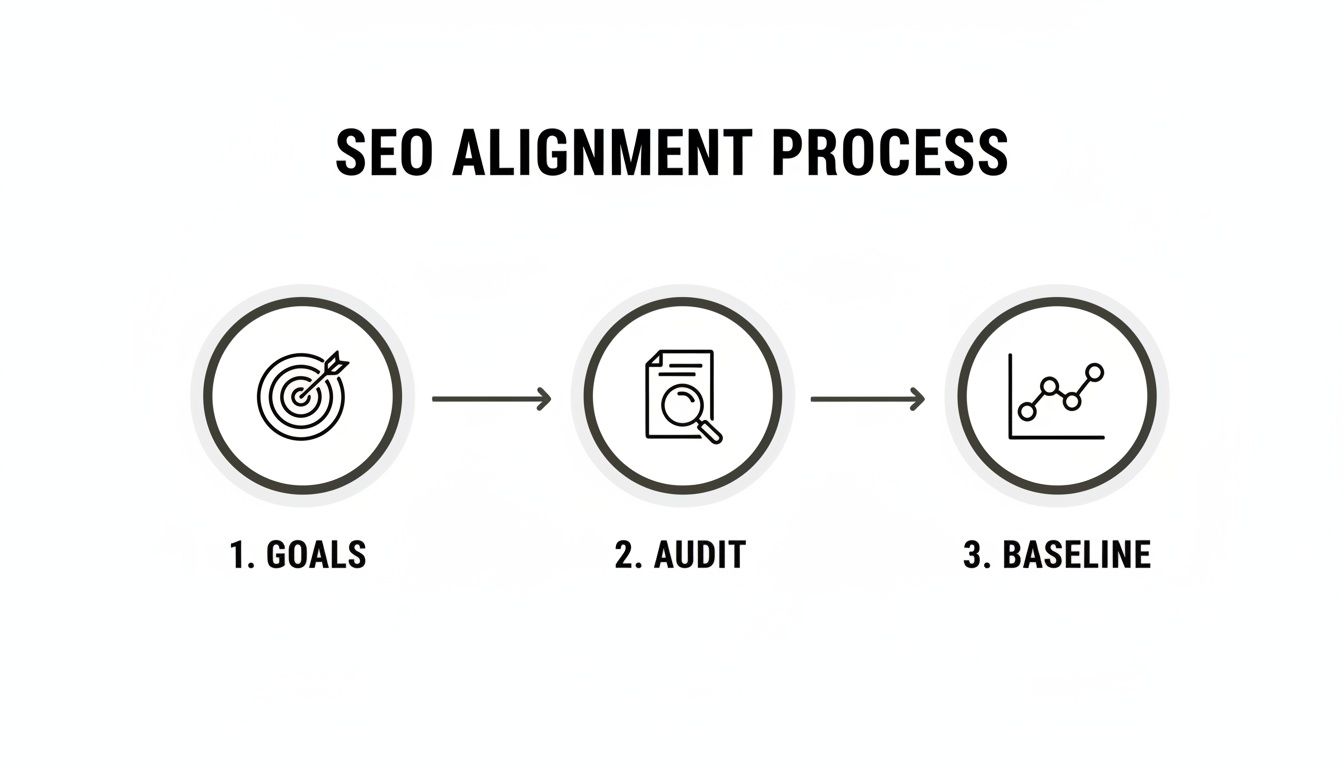
Defining goals, auditing your current state, and setting that baseline are the pillars that hold everything else up.
Webflow-Specific Considerations
If you’re on Webflow, this initial discovery phase has one extra step: a quick platform check. You need to make sure your basic SEO settings are configured correctly from day one. Confirm your site is indexable, check that your sitemap is set to auto-generate, and get a feel for how you’ll use CMS Collections to structure your content down the line. A solid foundation on Webflow will save you a world of technical headaches later.
For a quick check, go to your Project Settings > SEO. Ensure "Auto-generate sitemap" is on. Then, check the "Disable Webflow Subdomain Indexing" toggle. If you've connected a custom domain, this should be ON to avoid duplicate content issues.
Finding Keywords That Your Customers Actually Use

Let's get one thing straight: effective SEO isn't about casting a wide net with generic, high-volume keywords. It's about finding the exact phrases your ideal customers are typing into Google when they're stuck with a problem you can solve. A smart keyword strategy is way less about raw search numbers and more about capturing intent.
Think of it this way: everything in your SEO strategy rests on solid keyword research. It’s the foundation. We know from research that URLs with keyword-related words can see a 45% higher click-through rate. And when you consider that 68% of online experiences kick off with a search engine, you can’t afford to be invisible. Organic search is the engine for over half of all website traffic, so this is a step you absolutely cannot skip.
Uncovering User Intent
Before you even think about opening an SEO tool, you have to get inside your customer's head and understand the why behind their search. Every time someone types something into Google, their query fits into one of a few categories:
- Informational: They're looking for an answer or want to learn something. Think "how does Webflow CMS work?"
- Navigational: They're trying to get to a specific website. For example, "Block Studio blog."
- Commercial Investigation: They're in research mode, comparing options before they commit. A classic example is "best Webflow agency for startups."
- Transactional: They're ready to pull the trigger and take action. Something like "hire Webflow developer."
Your real job is to map these different intents to your customer's journey. Someone just starting to explore a problem needs informational content. Someone with their credit card out is using transactional terms. By focusing on intent, you create content that meets people exactly where they are in their decision-making process.
A Practical Keyword Research Workflow
Once you have a handle on intent, it's time to roll up your sleeves and find those keywords. Start by brainstorming a list of "seed" keywords. These are the big, foundational terms that describe what you do, like "Webflow SEO" or "B2B content marketing."
Next, take those seed keywords and plug them into a tool like Ahrefs or Semrush. These platforms will spit back thousands of related long-tail keywords. These longer phrases are gold—they're more specific, usually less competitive, and tend to have much higher conversion potential. Filter this massive list by metrics like keyword difficulty and search volume to find your sweet spot.
Don't get hung up on massive search volume. I’d much rather have a keyword with 50 monthly searches that perfectly matches my ideal customer's problem than a generic term with 5,000 searches that just brings in tire-kickers.
The real magic happens when you start spying on your competition. Most good SEO tools have a feature called "Content Gap" or "Competing Domains." This is a goldmine. It shows you all the keywords your competitors are ranking for that you aren't. It’s basically a pre-validated roadmap of strategic opportunities. If you want to go deeper on this, check out our full guide on how to do a content gap analysis for SEO.
Structuring Your Webflow Site for Topical Authority
This research isn't just an abstract exercise—it should directly dictate how you structure your Webflow site. The next step is to group your keywords into logical clusters or themes. For instance, keywords like "Webflow site speed," "image optimization Webflow," and "Core Web Vitals checklist" all fit neatly under the broader topic of "Webflow Performance."
Each of these clusters needs a dedicated pillar page—a massive, comprehensive guide that covers the topic from A to Z. This could be a static landing page or a super-detailed blog post. All those related long-tail keywords you found? Those become the supporting articles that link back to the main pillar page, creating a powerful, interconnected web of content.
Webflow’s CMS is perfect for this. Here’s how you can set it up:
- Create a "Categories" Collection: Go to the CMS panel and create a new Collection called "Categories." Add a "Name" field. Populate it with your main topic clusters (e.g., "Webflow Performance," "SEO Basics").
- Use Reference Fields: In your "Blog Posts" Collection, add a "Reference" field that points to your new "Categories" Collection. This lets you tag each post with its corresponding topic.
- Build Dynamic Category Pages: Create a new Collection Page for your "Categories" Collection. Design it as a template and use a Collection List to automatically pull in all blog posts that reference that specific category. This reinforces your expertise in that area.
This structured approach is a powerful signal to Google that you're an authority on a subject, which makes it much easier to rank for a whole constellation of related terms. You're no longer just publishing random posts; you're building a highly organized library of genuinely helpful information.
Fixing Technical Issues Holding Your Webflow Site Back
All the keyword research and amazing content in the world won't matter if your site is a technical mess. Think of technical SEO as the foundation of your house—if it's cracked, everything you build on top is unstable. For those of us using Webflow, this means getting under the hood to make sure search engines can find, crawl, and understand our content without hitting any roadblocks.
A solid technical tune-up is non-negotiable. It’s the work that ensures all the effort you put into content and keywords actually gets seen by Google. This isn't a one-and-done fix, either; it’s more like a regular health check to keep your site in peak condition.
Mastering Your Webflow SEO Settings
Webflow gives you a ton of control right out of the box, but you have to know how to use it. The absolute first thing to check is your site's indexability.
Pop over to your Project Settings, click on the SEO tab, and look for a toggle that says "Disable Webflow Subdomain Indexing." If you're using a custom domain (which you should be), make sure this is ON. This simple flick of a switch prevents Google from indexing your temporary your-site.webflow.io address, which is a classic cause of nasty duplicate content problems.
Next up are your sitemap.xml and robots.txt files.
- Sitemap: Webflow automatically generates and updates your sitemap, which is a huge time-saver. Your only job here is to double-check that the "Auto-generate sitemap" option is enabled in your Project Settings > SEO tab. This file is literally a roadmap for search engines, telling them exactly what pages matter on your site.
- Robots.txt: This file gives crawlers instructions on which pages or files they shouldn't access. While Webflow provides a solid default, you can customize it in Project Settings > SEO > Robots.txt. For example, to block a specific folder (like
/admin), you would addDisallow: /admin/.
Getting these basic settings right is your first line of defense. Skipping them is like leaving your front door wide open.
Tackling Common Webflow Pitfalls
Even though Webflow handles a lot of the heavy lifting, a few specific issues tend to crop up that need a manual touch. A big one I see all the time is duplicate content that comes from how CMS collections are structured. Let's say you have the same blog post appear in multiple categories, and each one gets its own URL—you've just accidentally created several versions of the same content.
Using canonical tags is your best friend here. A canonical tag is just a small snippet of code that points Google to the "master" version of a page. Inside Webflow, you can add a canonical tag by going to your Page Settings > Custom Code and adding <link rel="canonical" href="https://yourdomain.com/canonical-url"> into the Inside <head> tag section. For CMS pages, you can dynamically generate this URL.
Another frequent problem is a sluggish site, usually thanks to unoptimized images or code. Giant, uncompressed image files are the number one culprit. Webflow does have responsive image handling built-in, but you should still get in the habit of compressing images before you upload them. In the same vein, heavy custom scripts or too many third-party embeds can drag your site speed down and torpedo your Core Web Vitals scores.
Auditing for Speed and User Experience
Speaking of Core Web Vitals, these aren't just vanity metrics. They are Google's way of measuring how good the experience is on your page, looking specifically at loading speed, interactivity, and visual stability. A poor score can absolutely tank your rankings.
Running a regular technical audit is the only way to catch these issues before they become serious problems. Our comprehensive guide on how to do an SEO audit walks you through a step-by-step checklist you can use.
Here are a few quick wins to boost your Webflow site's speed right now:
- Compress All Images: Use a tool like TinyPNG or ImageOptim to shrink file sizes before they ever hit your Webflow media library. I aim for JPEGs for photos and SVGs for logos and icons whenever possible.
- Lazy Load Everything Below the Fold: In the Webflow Designer, select an image. Go to the Settings Panel (D). Under the image settings, you'll see a dropdown for "Load". Change this from "Auto" to "Lazy". This means they only load when a user actually scrolls to them, making that initial page load feel lightning-fast.
- Audit Your Custom Code: Take a hard look at any custom JavaScript or CSS you've added in Page Settings > Custom Code or Project Settings > Custom Code. If a script isn't absolutely essential, get rid of it or figure out how to defer its loading.
- Minimize Font Usage: In Project Settings > Fonts, check how many custom fonts and weights you're loading. Every custom font you add is another file that has to be downloaded. Try to stick to one or two font families.
- Clean Up Your CMS: Every so often, go through and delete unused CMS items and old drafts. A bloated collection list can sometimes slow down not just your live site, but the Designer itself.
By staying on top of these technical details, you're creating a smooth experience for both your visitors and search engine crawlers, giving your brilliant content the best possible chance to shine.
Creating Content That Ranks and Converts

Okay, you’ve sorted out the technical health of your Webflow site and have a smart list of keywords. Now comes the part where the magic really happens: creating the actual content. This is where you transform all that research into assets that pull in your ideal customers and build real authority. We're not just talking about blogging—we're talking about building a content engine.
The most effective way I've seen this done is with the topic cluster model. You start by creating a massive, definitive "pillar" page on a core topic. Then, you build out a series of more specific "cluster" articles that explore related subtopics in detail, with each one linking back to that main pillar.
This structure does wonders for your SEO. It tells Google you’re not just dabbling in a subject; you're an expert.
For example, your pillar page could be something like "The Complete Guide to Webflow E-commerce." From there, your cluster content would branch out into articles like "How to Set Up Shipping Zones in Webflow," "Optimizing Product Pages for Higher Conversion," and "A Founder's Comparison: Webflow vs. Shopify."
Mastering On-Page SEO in the Webflow CMS
With a solid plan, it all comes down to execution. Thankfully, optimizing your content right inside the Webflow CMS is pretty straightforward, as long as you’re methodical. Think of every new blog post or landing page as a fresh opportunity to send the right signals to Google.
To help you stay on track, I've put together a quick checklist for the on-page elements that matter most and exactly where to find them in Webflow.
On-Page SEO Checklist for Webflow CMS
This table is your quick-reference guide to ensure every piece of content you publish is fully optimized for search engines right from the get-go.
On-Page ElementWebflow LocationOptimization GoalTitle TagPage Settings > SEO SettingsGet your primary keyword in there, preferably near the start. Keep it under 60 characters so it doesn't get cut off in search results.Meta DescriptionPage Settings > SEO SettingsThis is your ad copy on the search results page. Write a compelling 155-character summary that includes the keyword and a clear call to action.URL SlugPage Settings > General SettingsKeep it short, sweet, and descriptive. Use your primary keyword and separate words with hyphens (e.g., /webflow-ecommerce-guide).Image Alt TextAsset Manager or Image SettingsDescribe the image for screen readers and search engines. If you can naturally include a keyword, great—but don't force it.
These might feel like small details, but they compound over time. Getting this right, consistently, is a non-negotiable part of a winning SEO strategy.
Structuring Content for Humans and Search Bots
The way you structure your content is just as important as the words you write. Both people and search engines love well-organized pages that are easy to scan and understand. This is where your heading tags (H1, H2, H3, etc.) are your best friends.
In most Webflow setups, your page title automatically becomes the H1 tag, and you only ever need one. To check or change this, select your main title text in the Designer and go to the Settings panel (D). Ensure the Tag is set to H1. Use H2 tags for your main sections and H3s for the sub-points within them. This creates a clear, logical hierarchy that Google’s crawlers can follow.
I always tell my team to think of headings as the table of contents for the page. A user should be able to scan just your H2s and H3s and know exactly what your article covers. This structure makes content scannable and improves user experience.
And don't forget that content isn't just text. Video is a massive opportunity. Exploring video SEO strategies for rapid growth can open up entirely new traffic channels that work alongside your written articles.
Creating Content Briefs That Guarantee Quality
To keep every piece of content perfectly aligned with your strategy—and to avoid wasting time and money—you need to use a content brief. It's a simple document that lays out the game plan for an article before anyone starts writing. It’s the blueprint that gets everyone on the same page, whether the content is created in-house or by a freelancer.
A good content brief should always include:
- Primary Target Keyword: The main phrase we want this piece to rank for.
- Secondary Keywords: Related terms and LSI keywords to sprinkle in naturally.
- Target Audience: A quick snapshot of who we're writing for (e.g., "Non-technical marketing managers at B2B SaaS companies").
- Search Intent: What is the reader actually trying to do? (e.g., "Learn how to choose a CMS").
- Competitor Links: The top 3-5 articles already ranking for our target keyword.
- Key Talking Points: A basic outline of the main sections and questions the article absolutely must answer.
Using a brief like this turns content creation from a guessing game into a repeatable, strategic process. It’s how you ensure every dollar you spend on content actually moves the needle.
How to Measure Your SEO Impact and Adapt
Look, an SEO strategy isn’t something you set and forget. It’s a living, breathing part of your marketing. Launching your content and technical fixes is really just the starting line. The real wins come from digging into the data to see what’s working, what’s flopping, and where you should be putting your time and money to actually prove ROI.
This constant loop of measuring, thinking, and adjusting is what separates the campaigns that just fizzle out from the ones that deliver serious, compounding growth over the long haul.
Building Your Core Reporting Dashboard
You don’t need some crazy expensive reporting tool to get started. Honestly, two free and incredibly powerful platforms are all you need: Google Analytics 4 (GA4) and Google Search Console (GSC). Together, they give you everything you need to see what’s going on.
Actionable Step for Webflow: You can add your Google Analytics tracking ID directly in Webflow. Go to Project Settings > Integrations, scroll down to the Google Analytics section, and paste your Measurement ID (e.g., G-XXXXXXXXXX). This will add the tracking code to every page on your site.
The goal here is to track metrics that actually mean something to the business, not just vanity numbers. Stop obsessing over that total traffic graph and focus on a few key performance indicators (KPIs) that connect directly to your bottom line.
Here’s what I always prioritize in my dashboards:
- Organic Traffic by Landing Page (GA4): This report is gold. It shows you exactly which pages are bringing people in from search engines, helping you pinpoint your star performers.
- Keyword Rankings & CTR (GSC): Don’t just track your rankings. Pay close attention to the click-through rate (CTR). If you’re ranking in the top 5 for a keyword but have a 2% CTR, that’s a huge red flag. It usually means your title tag or meta description isn’t compelling enough, and that’s an easy fix with a big payoff.
- Goal Completions from Organic Traffic (GA4): This is the money metric. You absolutely must set up "Conversions" in GA4 for things like demo requests, trial sign-ups, or contact form fills. This is how you prove that SEO is generating actual leads and sales.
Measuring success isn’t about watching a line go up on a traffic chart. It’s about answering the question, "Is our SEO effort bringing us more of the right customers?" If you can't answer that with data, your strategy is flying blind.
Interpreting the Data to Make Smarter Decisions
Once you have this data flowing in, you have to actually use it. Start looking for patterns.
Did one of your blog posts suddenly get a huge traffic spike? Jump into GSC and see what new keywords it’s ranking for. Did a key landing page see its conversion rate plummet? Maybe a recent design change made the call-to-action harder to find.
This analysis is your guide for what to do next. If a whole topic cluster is crushing it, that’s a clear signal from the market to double down and create more content on that theme. On the flip side, if a batch of articles gets decent traffic but has zero conversions, it's likely attracting the wrong people or failing to give them the answer they need.
Running Regular Content Audits
To keep your site lean and effective, you need to audit your content at least once or twice a year. An audit is just a systematic review of everything you've published to find the dead weight. Let’s be real, not every article is going to be a home run. That’s totally fine. The trick is to find the pages that are just taking up space or, worse, holding your site back.
When you do an audit, you’ll want to sort every URL into one of four buckets:
- Keep: It’s working. The content is driving traffic and conversions and is still accurate. Don't touch it.
- Update: The page has potential. It might be ranking on page two or three, or the information is a bit stale. A content refresh can often give it the boost it needs to compete for more valuable traffic.
- Merge: You’ve got a few similar, thin articles on the same topic. Combine them into one definitive, powerhouse guide. In Webflow, you would unpublish the old articles and set up 301 redirects from their old URLs to the new guide's URL. You can manage redirects in Project Settings > Hosting > 301 Redirects.
- Remove: The content is low-quality, completely irrelevant, and gets no traffic or engagement. Pruning this dead weight can actually improve your site's overall SEO performance by focusing Google's crawl budget on your best stuff.
This data-driven cycle of measure-analyze-adapt is what turns SEO from a bunch of random tactics into a reliable growth engine for your business. It makes sure every single thing you do is based on real-world feedback, getting you closer to your goals with every update.
Frequently Asked Questions on Webflow SEO Strategy
When you start digging into SEO, especially on a platform like Webflow, a lot of questions pop up. I get it. Let’s walk through some of the most common ones I hear from companies trying to build a solid SEO foundation.
How Long Does It Take to See SEO Results on a Webflow Site?
This is the big one, isn't it? The honest answer is: it’s a marathon, not a sprint. While you might see the needle move on technical site health within a few weeks of making fixes, you’re typically looking at 4 to 6 months before you see meaningful growth in organic traffic and keyword rankings.
If you’re in a cutthroat industry, that timeline could easily stretch closer to a year. Your starting point matters—a brand-new site will take longer than an established one. The speed of your results really hinges on your site's existing authority, how crowded your niche is, and how relentlessly you stick to your content and link-building plan. The real prize is long-term, compounding growth, not a short-lived traffic spike.
What Are the Most Important SEO Metrics to Track?
It’s incredibly easy to drown in data. The trick is to zero in on the metrics that actually tell you if your SEO efforts are making a difference to the business.
Instead of obsessing over hundreds of keyword positions, focus on a handful of KPIs that tell the real story.
- Organic Traffic by Landing Page: This shows you which pages are actually doing the heavy lifting and pulling in search visitors.
- Keyword Ranking Improvements: Don't watch everything. Keep a close eye on the high-intent keywords that are most likely to lead to a sale or a signup.
- Organic Click-Through Rate (CTR): You can pull this straight from Google Search Console. It’s a direct measure of how well your page titles and descriptions are convincing people to click.
- Conversion Rate from Organic Visitors: This is the bottom line. Are the people coming from search actually signing up for demos, buying products, or filling out contact forms?
- New Referring Domains: This is your authority-building report card. Tracking the growth of quality backlinks tells you if your site is earning more trust and respect online.
Keeping your eyes on these specific numbers gives you a clear, unfiltered view of how SEO is impacting revenue and leads.
Can I Manage Webflow SEO Myself or Should I Hire Someone?
You can absolutely handle the basics yourself. Webflow's interface is fantastic and makes it simple for anyone to update things like title tags, meta descriptions, and image alt text without needing to write a line of code.
But when it comes to building a full-blown strategy, that's where expertise comes in. Deep technical audits, sophisticated competitor analysis, creating content at scale, and building authority with a strategic outreach plan are all specialized skills. Bringing in an agency or a seasoned consultant can dramatically speed up your growth simply because they have a proven process to get you from A to B much faster than you could on your own.
Think of it this way: You can change the oil in your car, but you'd probably hire a mechanic to rebuild the engine. Basic maintenance is manageable, but high-performance tuning requires a specialist.
How Does Content Fit into a Technical SEO Strategy?
They're two sides of the same coin. One is pretty much useless without the other.
I like to think of technical SEO as building a perfect, high-speed highway system for your website. It's all about making sure search engine crawlers can navigate, understand, and index your entire site without hitting any potholes, like slow pages or broken links.
Your content is the valuable cargo you send down that highway. It’s the fleet of well-written articles, in-depth guides, and targeted landing pages that answers your audience's questions, establishes you as an expert, and attracts those all-important backlinks. Technical SEO clears the road so your brilliant content can actually reach its destination: the top of the search results. A truly effective SEO strategy has to master both.
At Block Studio, we don't just build websites; we build revenue engines. We offer a unified, plug-and-play package that combines expert Webflow development with a data-driven SEO and content strategy to deliver continuous, compounding growth. Learn how we can turn your Webflow site into your most powerful acquisition channel.