.png)


How to Perform a Website Audit for Your Webflow Site
Before you even think about running a crawler or digging into analytics, let's get one thing straight: a website audit without clear goals is just a glorified to-do list. It's easy to get lost in a sea of technical jargon and "best practice" checks that don't actually move the needle for your business.
The real magic happens when you tie every part of your audit back to what truly matters: growth.
Setting the Stage for a High-Impact Webflow Audit
I've seen too many audits end up as a 50-page PDF that collects dust. The reason? They start with the "what" (finding errors) instead of the "why" (achieving a business objective). An audit should never be an academic exercise; it's a strategic tool.
Your first move is to define what success looks like. Are you trying to drive more MQLs through your demo request form? Is the goal to rank for high-intent keywords that your competitors currently own? Nailing this down first turns a generic technical checkup into a powerful business initiative.
Defining Your Audit Goals
The goals you set will sharpen the focus of your entire audit. If you’re a B2B SaaS company, you'll probably care a lot more about conversion paths and lead funnels than a publisher who's obsessed with organic traffic and keyword rankings.
For a Webflow site, your audit goals will likely fall into one of these buckets:
- Boost Search Engine Rankings: Getting your key service and solution pages to the top of the SERPs for valuable, high-intent keywords.
- Drive More Qualified Organic Traffic: It's not just about more visitors, but the right visitors. This means fixing issues that prevent your ideal customers from finding you.
- Increase Lead Generation: Finding and fixing the leaks in your conversion funnels—from confusing forms to slow-loading landing pages—to turn more visitors into actual leads.
- Improve User Experience (UX): Pinpointing and eliminating friction points that cause frustration and make potential customers bounce.
Assembling Your Webflow Audit Toolkit
With your objectives locked in, it's time to gather your gear. You don’t need a massive, expensive tech stack. A few powerful, well-chosen tools will give you all the data you need for a comprehensive Webflow audit.
Here’s the essential toolkit I rely on:
- A Website Crawler: You absolutely need something like Screaming Frog or Ahrefs’ Site Audit tool. These are your workhorses for spotting technical problems at scale, like broken links, redirect chains, or missing meta descriptions.
- Analytics and Search Performance: Google Analytics 4 (GA4) and Google Search Console are non-negotiable. They're your direct line to understanding user behavior and seeing your site through Google's eyes.
- Performance Measurement: Google PageSpeed Insights is the gold standard here. It’ll give you the lowdown on your Core Web Vitals and help you diagnose performance issues that might be dragging your Webflow site down.
This simple, three-step approach—goals, tools, plan—is the foundation for any successful audit.
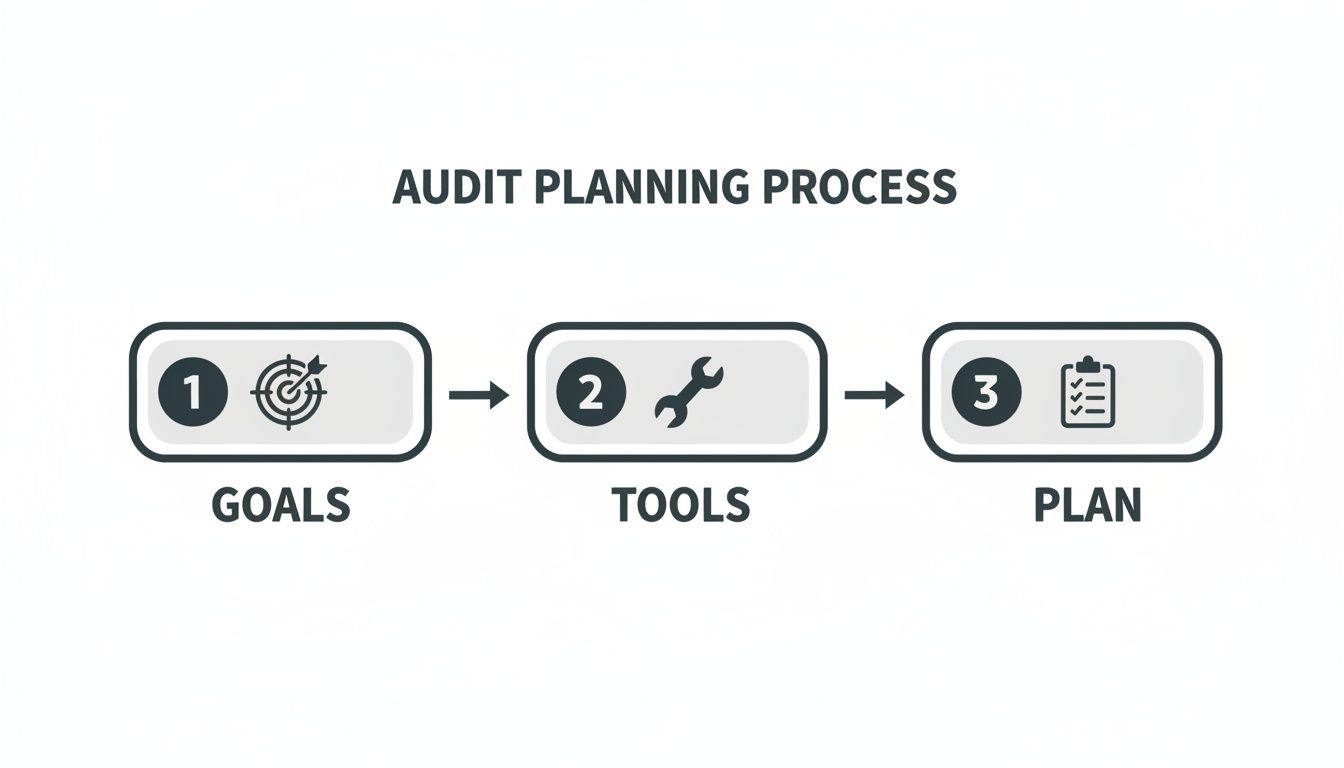
Starting this way ensures every recommendation you make is methodical and directly tied to a measurable outcome. This foundational work is what separates a routine check-up from an analysis that drives real results. To see how this fits into a bigger picture, check out our guide on how to build an SEO strategy.
Digging into Your Webflow Site’s Technical Health
Alright, with your goals set and your toolkit ready, it's time to roll up our sleeves and get into the technical nitty-gritty. This is the foundation of your SEO. If search engines can't efficiently crawl, understand, and index your website, even the best content in the world won't rank.
For Webflow sites, this is mostly straightforward, but there are a few platform-specific quirks you need to watch out for.
Are Search Engines Seeing the Right Pages?
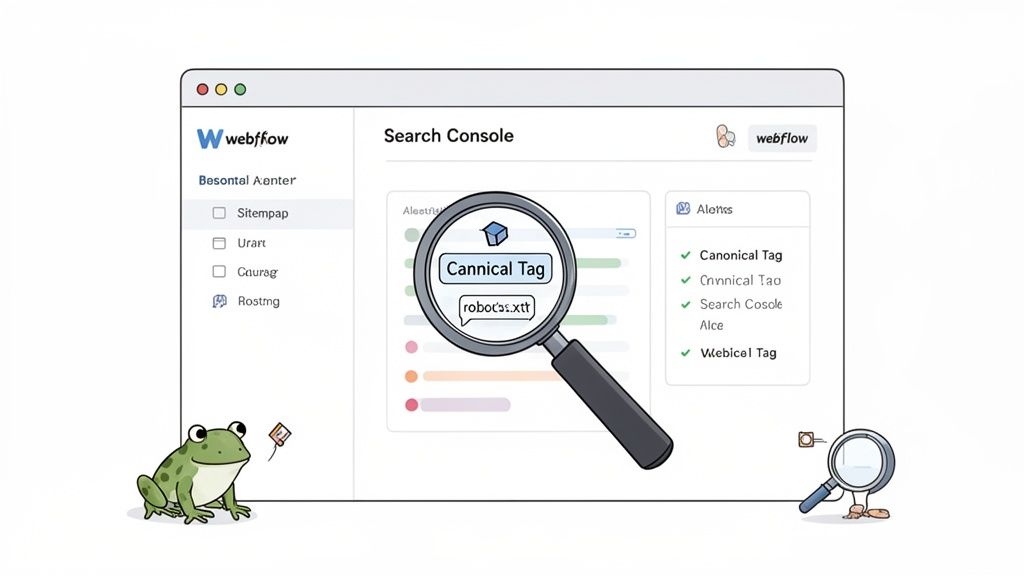
First things first: indexability. We need to make sure Google can see all your important pages while keeping the unimportant stuff—like staging environments or internal-only pages—out of the search results. This starts with your robots.txt file and meta tags.
In Webflow, managing your robots.txt file is a breeze. The main thing to check here is that you're not accidentally blocking crawlers from essential resources like your CSS or JavaScript files. Blocking these can stop Google from properly rendering your site, which is a major red flag.
Webflow Tutorial: Check and Edit Your robots.txt
- Go to your Project Settings > SEO tab.
- Scroll down to the Robots.txt section.
- Ensure the default rules aren't blocking important directories. A standard setup usually allows most crawlers.
- If you need to add custom rules (e.g., to block a specific subdirectory), you can do it here.
Controlling Crawling and Indexing Page by Page
While robots.txt gives broad instructions, you need meta tags for more granular, page-specific control. Webflow lets you inject custom code right into the <head> of any page or even entire CMS collections.
This is perfect for using the noindex tag. You'll want to apply this to pages you don't want showing up in search, like a thank-you page someone sees after filling out a form. Keeping these out of the search results ensures your presence is clean and focused on pages that attract new customers.
The Duplicate Content Trap and How to Escape It
One of the most common technical SEO headaches I see on Webflow sites is duplicate content, especially within CMS Collections. Think about it: a single blog post or case study might be accessible through multiple URLs if it's tagged with different categories. This confuses search engines.
The canonical tag (rel="canonical") is your solution. It's a simple piece of code that tells Google which URL is the "master" version you want to rank.
Webflow Tutorial: Setting Canonical Tags in a CMS Collection
- Open your CMS Collection Page template in the Designer.
- Go to Page Settings (the gear icon).
- Scroll down to the Custom Code section.
- In the
Inside <head> tagbox, add the following snippet:<link rel="canonical" href="https://yourdomain.com/[Collection-Slug-Field]/[Item-Slug-Field]" /> - Replace the bracketed fields with the actual slug fields from your collection. This dynamically tells Google the correct "master" URL for every item.
For example, let's say a case study lives at
/case-studies/client-abut can also be found at/industries/saas/client-a. You'd set the canonical tag on both pages to point to/case-studies/client-a. This consolidates all your ranking power into one URL.
Mapping Your Site Architecture and Sitemap
A clean, logical site structure is critical. It guides both users and search engine bots, helping to spread authority (what we used to call "link juice") from your homepage to your most important pages.
Take a moment to map out your site's hierarchy. Can a visitor get from your homepage to your key service pages in just a couple of clicks? If not, you may have an architecture problem.
Webflow does a fantastic job of automatically generating and updating your sitemap.xml file, which is a huge timesaver. But don't trust it blindly. Always pull it up yourself by going to yourdomain.com/sitemap.xml and give it a quick review.
Here’s what to look for:
- No
noindexPages: The sitemap shouldn't contain any pages you've intentionally marked with anoindextag. - Only Canonical URLs: Ensure only the primary, "master" versions of your pages are listed.
- Fresh Content: Double-check that your latest blog posts, case studies, or service pages have been added.
Beyond these core SEO checks, a complete audit should also touch on security. For a deeper dive into making sure your site is secure, you can find helpful resources on how to check if a website is safe.
Finally, let's talk about structured data (or schema markup). This is how you help search engines understand the context of your content, which powers those fancy rich results in search—think FAQs, star ratings, and event details. It's a massive opportunity that so many sites are missing.
A recent study found that over 23% of websites have no structured data at all. And among the ones that do, only 49.7% use JSON-LD, which is Google's preferred format. Leaving schema on the table can seriously hurt your click-through rates, especially when organic search is your primary growth engine.
Boosting Performance and Core Web Vitals
Site speed isn't just a techy obsession; it's one of the most critical factors in keeping visitors happy and converting them into customers. A slow site is a frustrating site, and that's a signal to Google that your user experience is lacking, which can tank your rankings. This is where we roll up our sleeves and turn your Webflow site into a lean, fast-loading machine by mastering Google's Core Web Vitals (CWV).
Getting this right isn't just about good housekeeping—it’s a massive competitive advantage. According to the Chrome UX Report, as of November 2025, only 54.6% of websites worldwide meet Google's Core Web Vitals standards. For growth-stage B2B companies, that gap is a huge opportunity to outpace the competition.
Demystifying Core Web Vitals
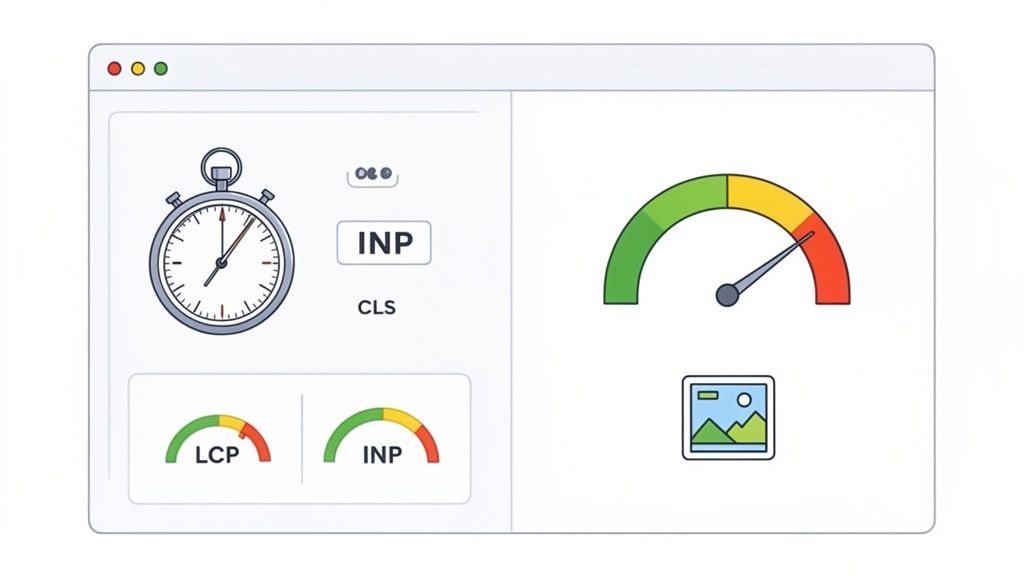
Think of Google's CWV as its way of measuring how a page feels to a real user. It boils down to three key metrics that quantify the user's experience with loading, interactivity, and visual stability.
Largest Contentful Paint (LCP): This is all about loading speed. It measures how long it takes for the largest piece of content on the screen (like a hero image or a big headline) to appear. You're aiming for an LCP under 2.5 seconds.
Interaction to Next Paint (INP): The new kid on the block for measuring responsiveness, INP looks at how quickly your site reacts when someone clicks, taps, or types. Anything below 200 milliseconds feels snappy and responsive to a user.
Cumulative Layout Shift (CLS): This metric targets visual stability. We’ve all experienced it: you go to tap a button, and an ad loads, shifting the whole page. CLS measures how much of that annoying shifting happens. A score under 0.1 is the goal.
Your go-to tool here is Google PageSpeed Insights. Just plug in a URL, and it will spit out a detailed report card with actionable advice on how to improve.
To make this super practical for your Webflow audit, here’s a quick checklist that isolates the most common performance issues I see on Webflow sites and what to do about them.
Webflow Core Web Vitals Audit Checklist
By tackling the items in this table, you're directly addressing the low-hanging fruit that often drags down Webflow performance scores.
A Webflow-Specific Performance Checklist
While performance principles are universal, Webflow has its own unique set of tools and potential traps. As you audit, dig into these specific areas.
Image Optimization Done Right
Images are almost always the heaviest assets on a page. Webflow gives you amazing built-in tools to handle them, but only if you use them correctly.
Use Responsive Images: Check every significant image. Did you upload multiple variants in the Asset Panel (e.g., 2000px, 1600px, 1024px)? Webflow uses these to create
srcsetattributes so browsers can download the right size for the device.Leverage Native Compression: Webflow automatically compresses images and converts them to the efficient WebP format. Verify this is working as expected. Don't upload pre-optimized JPEGs or PNGs, as it can sometimes mess with this process.
Set Explicit Dimensions: This is a huge one for CLS. Go through your key pages and ensure every image element has a specific
widthandheightset in the Style Panel. This lets the browser save a spot for the image before it loads, preventing the content from jumping around.
From the field: A classic mistake I find is a designer uploading a massive 4000px hero image and just resizing it on the canvas. This forces every user—even on a tiny phone screen—to download that giant file. Properly setting up responsive images is probably the single biggest performance win you can get on a Webflow site.
Cleaning Up Your Code and Interactions
Just because Webflow is "no-code" doesn't mean your site's code is automatically perfect. Over time, digital clutter builds up and can slow things down.
Minify CSS and JS: This should be a no-brainer. Head to your Webflow project settings and make sure this is toggled on. It strips out unnecessary characters from your code, making the files smaller and faster to download.
Audit Interactions and Animations: It's way too easy to get carried away with animations that look cool but absolutely murder performance. Review all your interactions. Do you have old, unused ones lingering? Are your animations using inefficient properties like
marginorpaddinginstead of more performanttransforms?Clean Up Unused CSS Classes: As a project evolves, it can collect hundreds of unused or duplicate CSS classes. Use the "Clean Up" tool in the Style Manager to purge them. It's a small change, but it helps trim the fat from your CSS file.
Working through this checklist will help you systematically find and fix the bottlenecks holding your site back. If you want to dive even deeper, check out our guide on website performance optimization tips tailored specifically for Webflow.
4. Digging Into Your On-Page SEO and Content
If technical SEO is the foundation of your house, content is everything inside it—the stuff that actually makes people want to visit. Once you’ve confirmed search engines can find and understand your site, it’s time to give them something truly valuable to rank. This is where we shift from code to communication.
Here, we're auditing the words, images, and structures your audience sees and interacts with. For a growth-stage B2B company, you can't afford to have pages that don't pull their weight. Every piece of content needs a job, whether it's attracting new visitors, educating prospects, or converting leads.
Nail the On-Page Fundamentals
Think of on-page SEO elements as signposts for both Google and your human visitors. They provide the most critical clues about what a page is about and why it matters. Getting these right is often the lowest-hanging fruit with the biggest potential payoff.
During your audit, you need to check these elements on your most important pages:
- Title Tags: Does the title accurately describe the page content and include your main keyword? A great title tag is what earns the click from the search results.
- Meta Descriptions: These don't directly impact rankings, but they are your ad copy in the SERPs. A persuasive meta description can dramatically increase your click-through rate.
- Header Structure: Is there one, and only one,
<h1>tag on the page? Are<h2>and<h3>tags used to create a logical outline? This makes content scannable for users and helps crawlers grasp the information hierarchy.
One of the great things about Webflow is how it simplifies this. You can set up dynamic metadata for your CMS Collections, pulling from fields like "Post Name" for the title tag and a "Post Summary" field for the meta description. This means you can optimize hundreds of pages at once from a single template.
Are You Matching What Searchers Actually Want?
Keywords get you in the game, but user intent is what wins it. Someone searching for "what is CRM software" has a very different goal than someone searching for "HubSpot vs Salesforce pricing." The first person wants to learn; the second is ready to compare and potentially buy.
Your content audit has to map your existing pages to the buyer's journey. Are your blog posts serving those top-of-funnel informational queries? Do you have solid middle-of-funnel content like comparison guides, and bottom-of-funnel pages like case studies or implementation guides?
I see this mistake all the time: a company targets a high-volume keyword but completely misses the intent behind it. For instance, a B2B SaaS business might write a blog post defining a complex technical term, but if all the top-ranking results are academic papers, they’ve misjudged the audience and will never rank.
Finding and Filling Your Content Gaps
One of the most powerful outcomes of an audit is discovering what you're not talking about. The quickest way to do this? See what's working for your competitors. Tools like Ahrefs or Semrush are perfect for this—they can show you exactly which keywords your rivals rank for that you don't.
This isn't about just copying their articles. It's about understanding the questions your shared audience is asking and then creating a resource that's ten times better. This is how you build topical authority and become the go-to resource in your space. As you build out this new content, make sure it’s woven into your existing pages. A smart internal linking strategy is absolutely crucial for this.
For those on Webflow, the CMS makes it incredibly easy to act on these findings. Let's say you discover a gap for a guide on a key product feature. You can spin up a new, fully optimized blog post using your existing templates in minutes, ensuring it’s perfectly structured for SEO from the second you hit "Publish." This agility is a massive advantage.
Auditing the User Experience and Conversion Pathways
Getting a ton of organic traffic is great, but if those visitors aren't turning into customers, what's the point? It’s like owning a beautiful storefront with a jammed door—people show up, but they can't get inside to buy anything. This is where our audit pivots from satisfying search engine bots to truly serving human users.
For B2B companies, especially those on Webflow, this part of the audit is where the rubber meets the road. We're no longer just scanning for technical hiccups. We're on the hunt for friction—those tiny annoyances, confusing layouts, and vague calls-to-action (CTAs) that make a potential lead bounce. The stakes are high; studies show that a staggering 88% of users won't return to a site after just one bad experience.
Mapping the User Journey
Before you can plug the leaks in your funnel, you have to know where they are. This isn't about aimlessly clicking around; it's about methodically tracing the exact paths your most valuable users are meant to follow.
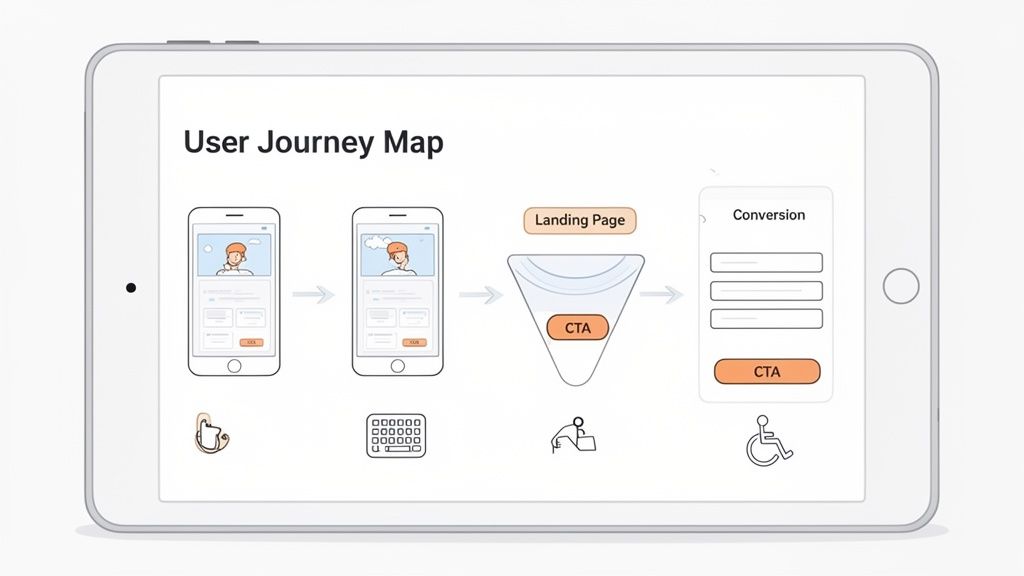
Think like your ideal customer and map out the primary conversion pathways on your site:
- The Demo Request: Start on a high-traffic blog post. What are the exact steps a user has to take to land on your "Request a Demo" confirmation page?
- The Contact Form: From a core service page, how obvious and easy is it to find and fill out the contact form?
- The Gated Content Download: If you’re offering a valuable ebook, what’s that experience like from click to download?
Actually walk through these funnels yourself, on both desktop and mobile. Pay attention to every single click, scroll, and form field. Is the navigation intuitive? Are the buttons clearly labeled? This manual, real-world testing is where you’ll spot the glaring issues that automated tools almost always miss.
Evaluating Key UX and CRO Elements
With your user journeys mapped, it’s time to zoom in on the specific elements that make or break the experience and ultimately drive conversions.
Navigation and Clarity
Your site’s navigation is its roadmap. If it’s a mess, your visitors will get lost and frustrated. Check for a logical information architecture, clear menu labels (no cryptic internal jargon!), and an easy-to-find search bar. The old "three-click rule"—the idea that a user should be able to find anything within three clicks—is still a solid benchmark to aim for.
Call-to-Action Effectiveness
Your CTAs are arguably the most important buttons on your entire website. Do they grab attention and inspire action?
- Visibility: Use high-contrast colors that make your CTAs pop against the background. They shouldn’t blend in.
- Clarity: The text needs to be specific and action-oriented. "Get Your Free Demo" is miles better than a generic "Submit."
- Placement: Position CTAs right where a user’s eyes would naturally go after they’ve read your pitch, like at the end of a key section or within a sticky header.
A classic mistake I see all the time on otherwise beautiful Webflow sites is having too many competing CTAs on a single page. When you make everything a priority, nothing is. Your audit needs to pinpoint the one primary action you want a user to take on each page and ensure the design gently guides them toward it.
Mobile Experience and Accessibility
Google’s mobile-first indexing isn't just a suggestion—it's the reality. But being "mobile-friendly" is about more than just having a layout that resizes. Buttons need to be big enough for a thumb to tap easily, forms must be dead simple to complete on a tiny screen, and text has to be legible without any pinching or zooming.
Accessibility is a natural extension of a great mobile experience. An accessible site doesn't just help users with disabilities; it creates a better, more forgiving experience for everyone. Webflow has a handy built-in Audit panel that can catch basic problems like missing alt text or poor color contrast. Beyond that, try this simple test: can you navigate your entire site using only your keyboard's "Tab" key? If you can't reach every link and form field, you've got a critical accessibility issue to fix.
A huge part of this is how you welcome new users to your product or service. To make sure your Webflow site provides a seamless introduction from the very first visit, it's worth digging into SaaS onboarding best practices for a solid framework.
Building an Actionable Audit Report and Roadmap
Let’s be honest: an audit that just sits in a folder is a waste of everyone's time and money. After all the crawling, analysis, and late nights staring at spreadsheets, this is the moment that matters. It’s where you transform a massive pile of data into a strategic plan that actually gets things done.
Your job now is to create a clear, compelling roadmap that gets your entire team—from the C-suite to the front-line developers—on the same page and excited to move forward.
The way you present your findings is just as important as the findings themselves. Your report needs to speak to different audiences. An executive might only have five minutes for the highlights, while a developer needs the nitty-gritty details to push a fix live. A truly effective report flows from a 10,000-foot view down to the granular level.
Structuring Your Audit Findings
Always lead with a punchy executive summary. This is your one-page elevator pitch. It should spotlight the most critical problems and your top three to five game-changing recommendations. For many stakeholders, this is the only page they’ll read, so make it impactful.
After the summary, dive into the details. I find it’s best to organize the findings in the same way you conducted the audit—it just makes sense.
- Technical SEO Health: This covers everything from indexing status and crawl errors to schema problems.
- Performance & Core Web Vitals: Lay out the LCP, INP, and CLS scores and call out the pages or elements causing the most trouble.
- On-Page & Content Analysis: Discuss title tag optimization, content gaps you've identified, and how well you're targeting keywords.
- UX & Conversion Pathways: Pinpoint where users are dropping off and how effective your CTAs really are.
Don't just list problems. For every issue, explain why it's a big deal. Instead of a sterile note like "Fix 404 errors," frame it with context: "We found dozens of broken internal links, which creates a frustrating dead-end for users and wastes our crawl budget, making it harder for Google to find our most important content." Context is what secures buy-in.
Prioritizing Fixes with an Impact Matrix
You’re going to have a long list of issues—maybe even hundreds. If you just hand over a massive to-do list, your team will be completely overwhelmed. This is where you put on your strategist hat. The best tool for the job is a simple but powerful impact vs. effort matrix.
Categorize every single task on a 2x2 grid:
- High-Impact, Low-Effort (Quick Wins): These are the no-brainers. Do them yesterday. We're talking about things like fixing a broken title tag on the homepage or compressing a few hero images.
- High-Impact, High-Effort (Major Projects): These are your big, strategic bets that require serious planning, like overhauling the site architecture. Slot these into the quarterly roadmap.
- Low-Impact, Low-Effort (Fill-in Tasks): Nice-to-haves. Tackle these when the team has a bit of downtime or between bigger projects.
- Low-Impact, High-Effort (Time Sinks): Honestly? You can probably ignore most of these. Your time is better spent elsewhere.
This matrix does more than just organize a list; it turns chaos into a clear, phased action plan. It forces you to be ruthless about focusing on what will actually move the needle, ensuring your audit drives real, measurable growth.
Frequently Asked Questions About Webflow Audits
Even with a detailed plan, a few questions always pop up when it's time to audit a Webflow site. Let's dig into some of the most common ones I hear.
How Often Should I Audit My Webflow Site?
This is a great question, and the answer isn't "it depends." For most growth-focused companies, a major, top-to-bottom audit makes sense annually. Think of this as your yearly strategic review—it sets the benchmark for everything you'll do in the next 12 months.
But you can't just set it and forget it. I always recommend smaller, more targeted check-ups on a quarterly or bi-annual schedule. These mini-audits are perfect for spotting recent issues, like checking for new 404s in Search Console after a content push or running a performance scan on a newly launched landing page.
What Are the Must-Have Tools for a Beginner?
You don't need a massive, expensive software suite to get started. Honestly, you can uncover 80% of the most critical issues with just three free tools.
- Google Search Console: This is your non-negotiable starting point. It's Google's direct feedback loop, showing you exactly how it sees your site—from crawl errors to indexing problems.
- Google PageSpeed Insights: When it comes to performance and Core Web Vitals, this is the source of truth. It gives you real-world data and a clear list of what to fix.
- A Free Crawler: The free version of Screaming Frog is the industry standard for a reason. It crawls up to 500 URLs and is fantastic for finding broken links, missing title tags, and messy redirect chains.
What Are the Most Common SEO Issues on Webflow Sites?
Webflow is incredibly powerful, but that power also makes it easy to make a few common mistakes. Over years of auditing Webflow sites, these are the problems I see time and time again.
- Massive, Unoptimized Images: This is probably the biggest offender. A designer uploads a beautiful, high-resolution image and just resizes it on the canvas. The browser still has to load the full, massive file, which absolutely kills your page speed.
- Improper Use of Heading Tags: It's so tempting to use an H2 or H3 just because it looks good stylistically. But this wrecks your content's semantic structure, which is crucial for both SEO and accessibility.
- Duplicate Content from CMS Collections: When you have a CMS item—like a blog post or case study—that lives in multiple categories, it's easy to forget to set a canonical tag. Without it, you're essentially creating duplicate pages and splitting your SEO value.
- Poor Mobile Responsiveness: Webflow gives you amazing control over breakpoints, but it's also easy to build a complex desktop layout that completely falls apart on a smaller screen. This creates a terrible user experience and can hurt your rankings.
A thorough audit is the first step toward turning your website into a reliable growth engine. At Block Studio, we specialize in transforming Webflow sites into high-performing assets that attract and convert your ideal customers. Learn how we combine expert SEO, development, and content strategy to drive measurable results at https://www.blockstudio.co.