.png)

A Webflow Editorial Calendar Template That Actually Works
A solid editorial calendar template is more than just a spreadsheet of dates; it's the central nervous system for your entire content marketing operation. Think of it as the strategic blueprint that gets your team on the same page, locks in a consistent publishing schedule, and ties every piece of content back to your actual business goals.
The Content System Your Webflow Site Is Missing
Let's be real for a second. Trying to manage content in Webflow without a proper system can feel like organized chaos. You're juggling blog posts, building out new landing pages, and maybe even trying to publish case studies. All the while, deadlines are looming, and your team isn't quite sure who's doing what. It’s a recipe for last-minute scrambles and a nagging feeling that your content isn't really moving the needle.
This is where a purpose-built editorial calendar completely changes the game. It's not another task to check off—it's the command center for your whole content engine, specifically designed to bring strategy and order to the creative madness.
From Chaos to Clarity
A well-designed calendar pulls you out of a reactive "what should we post today?" mindset and into a proactive strategy. You’ll have a clear roadmap for the weeks and months ahead, which is a massive advantage for anyone managing different content types within the Webflow CMS.
The numbers back this up. Businesses that get serious about planning are 60% more likely to hit their content goals. Another survey found that 72% of the most successful marketers point directly to their editorial calendar as a key reason for their achievements. The data is pretty clear: planning is performance.
A Blueprint for Webflow Growth
The templates we've built—for Google Sheets, Airtable, and Notion—were designed with the unique headaches of Webflow users in mind. They aren’t just for tracking dates; they’re a tool for driving real growth.
Here’s a look at what makes this approach different:
- Direct CMS Integration: We’ve included fields like
Webflow CMS Item IDto create a direct link between your calendar and your live site. No more guessing what's been published where. - SEO-Driven Planning: With dedicated columns for
Target KeywordandSearch Intent, SEO becomes part of the plan from day one, not an afterthought. This is crucial for building out a strong internal linking strategy that boosts SEO performance. - Team Collaboration: Clear ownership fields for
AuthorandEditor, plus aContent Statustracker (e.g., Ideation, Writing, Published), cut through the confusion and keep everyone accountable. - Strategic Alignment: By mapping content to funnel stages and audience personas, you ensure every single article has a job to do in your customer's journey.
A quick look at the essential fields in our template and how they streamline your Webflow content workflow.
Inside the Webflow Editorial Calendar Template
This structure ensures every piece of content has a clear purpose and a direct path from idea to publication.
An editorial calendar isn't just a scheduling tool; it's a system for accountability. It turns abstract goals like "increase traffic" into a concrete action plan where every article and landing page plays a part.
Ultimately, the goal is to give you a tool that brings focus and control back to your content workflow. It’s designed to free you from the stress of an inconsistent publishing schedule and give you a repeatable system for creating high-quality, strategic content. To see how these principles apply in practice, check out this detailed guide on building a Notion content calendar template for flawless planning. Getting this foundation right is the first step toward turning your website into a reliable engine for growth.
Making the Template Your Own
A downloaded editorial calendar template is a great launchpad, but its real value comes alive when you customize it. A generic plan just can't account for your specific business goals, your team's unique rhythm, or how you’ve set up your Webflow CMS. The next step is to turn this base template into a true command center that’s wired directly into how you actually work.
This whole process really starts with how you organize your content. Your Webflow site is probably built around CMS Collections—maybe you have "Blog Posts," "Case Studies," and "Product Updates." For everything to run smoothly, your calendar’s taxonomy should be a perfect mirror of this setup.

Define a Content Taxonomy That Mirrors Your CMS
Think of your content taxonomy as the set of labels you use to sort every single piece of content. When your calendar's taxonomy perfectly matches your Webflow CMS Collections, you create a direct line between planning and execution. It just clicks. This simple move gets rid of any confusion and makes it incredibly easy to see what content belongs where.
Actionable Webflow Tutorial:
- Open Your Webflow Project: Navigate to the CMS Collections panel in the left-hand sidebar.
- List Your Collections: Write down the exact names of your primary content collections (e.g., "Blog Posts," "Case Studies," "Guides").
- Create a "Content Type" Field: In your editorial calendar template (Airtable, Notion, or Sheets), add a new "Single Select" or "Dropdown" field named
Content Type. - Add Your Collection Names: Populate the options for this new field with the exact names from your Webflow CMS. Now, every new content idea can be tagged to its destination Collection from day one.
This alignment brings instant clarity. You can filter your calendar to see only the upcoming case studies or check on the progress of all your service page updates with a single click.
Add Custom Fields That Actually Drive Your Strategy
Once your basic taxonomy is set, the real fun begins: adding custom fields that tie directly to your business strategy. These columns are what elevate the template from a simple schedule into a powerful strategic asset. The goal here is to add fields that help you make smarter content decisions on the fly.
Here are a few high-impact custom fields I’ve seen work wonders, along with some real-world scenarios:
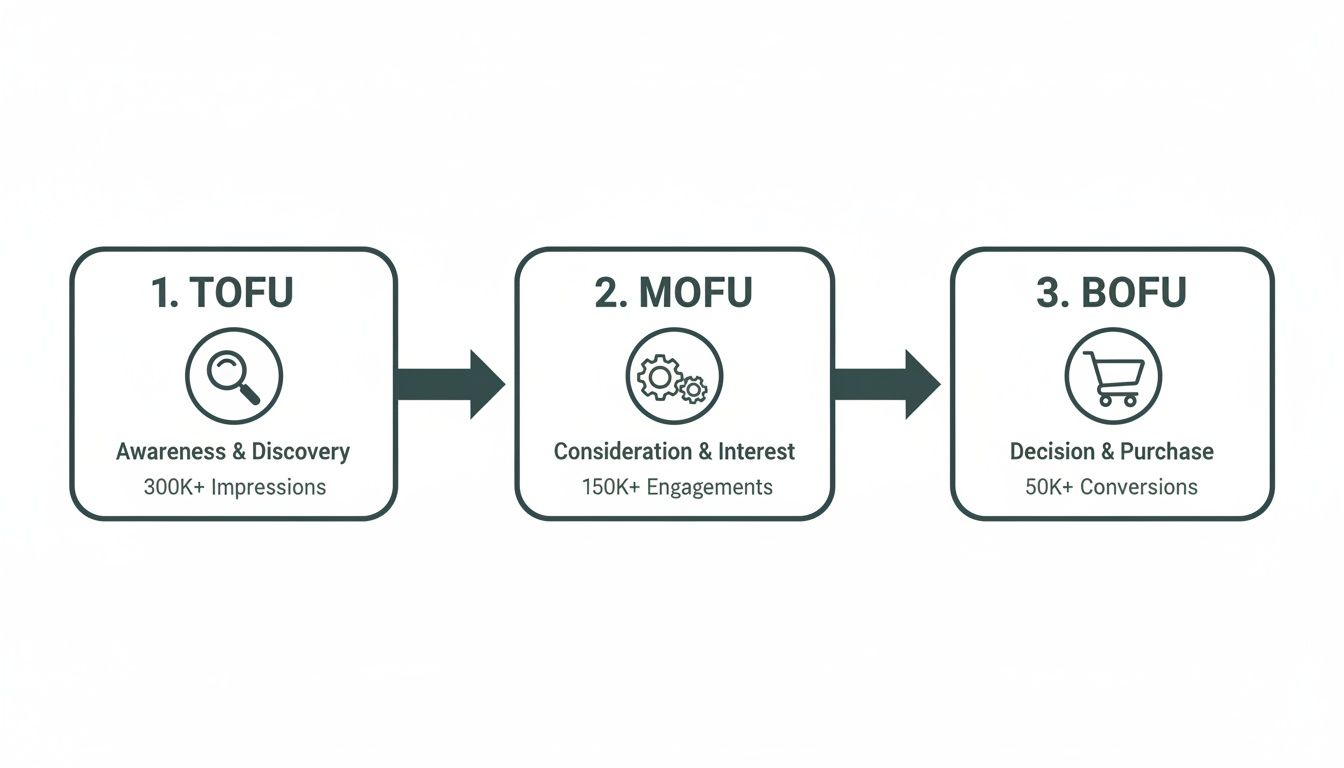
- Funnel Stage: This one is non-negotiable for ensuring you have a balanced content mix. By tagging each piece as TOFU (Top of Funnel), MOFU (Middle of Funnel), or BOFU (Bottom of Funnel), you can spot gaps in your customer journey before they become a problem.
- Target Persona: If you're talking to multiple audiences, this field is a lifesaver. It ensures every article is laser-focused on a specific segment. A B2B SaaS company might have personas like "Marketing Manager" or "Sales Director," each with their own unique challenges and goals.
- Associated Product/Service: This is a must-have for any business with more than one offering. An e-commerce brand can tag blog posts with the product line they’re featuring, while a software company can link an article to the specific feature it explains.
Custom fields are what truly make an editorial calendar yours. They are the bridge between your high-level marketing objectives and the individual pieces of content your team creates day in and day out.
Putting It All Together: Real-World Examples
Let's look at how this customization plays out for different types of businesses using Webflow.
A SaaS business could supercharge their editorial calendar template with these custom fields:
- Feature Update: A simple checkbox to flag content that supports a new product release.
- Competitor Target: A field to note which competitor's content they are trying to outrank in the SERPs.
- Internal Link Target: The URL of a high-value page this new content should link back to for SEO.
On the other hand, an e-commerce store might customize their template with fields like:
- Promotional Period: A tag to connect content with specific sales events, like "Black Friday" or "Summer Sale."
- Collection Focus: The product collection being featured (e.g., "Men's Footwear").
- Influencer Partner: The name of the creator or partner involved in making or promoting the content.
By taking the time to add these thoughtful, business-specific fields, you’re no longer just using a spreadsheet. You're building a dynamic system that actively fuels your growth goals and makes sure every piece of content is created with purpose.
From To-Do List to Growth Engine: Mapping Content to Your Customer Journey
Alright, your editorial calendar template is set up and customized. Now for the fun part—transforming it from a simple task manager into a strategic growth tool. Great content isn't just about covering interesting topics; it's about connecting with the right person at the right time. Your goal is to meet potential customers exactly where they are, answering their questions and guiding them from just-browsing to ready-to-buy.
This is where we start mapping content ideas to the different stages of the customer journey. By doing this, you'll see at a glance whether you have the right mix of content to attract new leads, nurture them as they learn more, and ultimately convince them to choose you. This is how your Webflow site evolves from a simple blog into a powerful conversion funnel.
First Things First: Understanding the Funnel
Before we can map anything, we need to be on the same page about the marketing funnel. Every piece of content you create should serve a specific purpose, and you’ll track this using that "Funnel Stage" field we added to the calendar.
Think of it in three main phases:
- Top of Funnel (TOFU): This is the "awareness" stage. Your audience knows they have a problem, but they might not even have the words to describe it yet. Content here should be purely educational and helpful, answering broad questions without pushing for a sale.
- Middle of Funnel (MOFU): Welcome to the "consideration" stage. People here are actively researching solutions. They’ve defined their problem and are now comparing their options. Your content needs to showcase your expertise and position your solution as a strong contender.
- Bottom of Funnel (BOFU): This is the final "decision" stage. Your prospect is ready to pull the trigger. They just need that last bit of reassurance that you're the right choice. Your content must build trust and make it easy for them to convert.
Organizing your content this way is a sanity check. It stops you from publishing twenty "awareness" blog posts while totally neglecting the people who are actually ready to hand you money.
Brainstorming Content for Every Stage
Now, let's start populating your calendar. The trick is to put yourself in your audience's shoes. What keeps them up at night? What questions are they typing into Google at each stage? A solid set of buyer personas is your best friend here. If you haven't built yours out yet, our guide on how to create buyer personas is the perfect place to start.
Let’s run through a real-world scenario. Imagine you run a Webflow development agency. Here’s what your content brainstorming might look like:
TOFU Ideas (Casting a Wide Net)
Your goal is to attract anyone starting to think about their website problems.
- Blog Post: "10 Signs Your Website Is Actively Losing You Money"
- Guide: "The Ultimate Website Redesign Checklist for 2024"
- Video: "Webflow vs. WordPress: A No-BS Comparison for Small Businesses"
These topics hit on common pain points and draw in a broad audience through organic search.
MOFU Ideas (Showcasing Your Expertise)
Here, you're proving you have the answers to their specific challenges.
- Case Study: "How a Webflow Site Revamp Increased Leads by 145% for a B2B SaaS Client"
- Webinar: "The 5 Webflow SEO Mistakes We See Every Day (And How to Fix Them)"
- Comparison Guide: "How to Choose the Right Webflow Agency for Your Project"
This is where you build trust and demonstrate your value.
BOFU Ideas (Closing the Deal)
At this point, it's all about making it a no-brainer for them to choose you.
- Pricing Page: A crystal-clear breakdown of your service packages. No ambiguity.
- Client Testimonials: A page with short, powerful video testimonials from happy clients.
- Consultation CTA: A frictionless way to book a free strategy call directly from your site.
A balanced content strategy doesn't just attract traffic—it converts it. Your editorial calendar makes this balance visible, turning a plan into a predictable system for growth.
Once you tag each idea with its funnel stage in your new calendar, you'll have an instant visual report on your content strategy. Is it all TOFU? You’re probably getting traffic but no leads. Too much BOFU? You’re not filling the top of your funnel. This simple mapping process ensures every single asset you publish has a clear, strategic purpose.
Connecting Your Calendar to the Webflow CMS
Once your editorial calendar is humming along as a strategic planning tool, it's time for the real magic: connecting it directly to your Webflow site. This is where you can finally ditch the soul-crushing, error-prone routine of manually copying and pasting everything from a spreadsheet into the Webflow CMS.
By building a simple bridge between your calendar and your live site, you create a genuinely seamless workflow that will dramatically speed up your publishing process.
The secret sauce here is an automation tool. Platforms like Zapier or Make (which you might remember as Integromat) are brilliant at this. They act as the digital glue, letting you set up simple "if this, then that" workflows between all the different apps you use. For a Webflow-based content operation, this is an absolute game-changer.
Setting Up Your First Automation
Let's walk through a powerful, practical example you can set up right now. We're going to build an automation that creates a new draft in your "Blog Posts" Collection in Webflow the instant you change a task's status to "Writing" in your calendar. Just like that, your calendar becomes a true content command center.
Here are the moving parts for this workflow:
- The Trigger: Your editorial calendar in Google Sheets, Airtable, or Notion. This is where it all starts.
- The Action: A new draft is created in Webflow. This is the end result.
- The Bridge: Zapier. This is the tool that listens for the trigger and makes the action happen.
The goal is pretty straightforward: map the fields from your Google Sheet—like Title, Author, and Target Keyword—directly to the matching fields in your Webflow CMS Collection. When the automation fires, it instantly populates a new CMS item with all that crucial data, creating a perfectly structured draft that's ready for the writer.
A Practical Step-by-Step Zapier Workflow
You don't need to be a developer to pull this off. Building this connection is surprisingly simple once you understand the logic.
Here’s the basic flow you'll build inside Zapier:
- Set Your Trigger. Start by picking Google Sheets and selecting the "New or Updated Spreadsheet Row" trigger. This tells Zapier to keep an eye on your editorial calendar for any changes.
- Define the Trigger Event. Next, you need to tell Zapier what to watch for. Point it to your "Status" column and set the trigger to fire only when the value in that column changes to "Writing."
- Choose Your Action. Now, select Webflow as the action app and choose the "Create Live Item" action. Don't let the name fool you; we'll make sure it stays a draft in a moment.
- Map Your Fields. This is the most critical step. Zapier will pull in all the fields from your Webflow "Blog Posts" Collection. Your job is to connect the dots. Map the
Titlefrom your spreadsheet to theNamefield in Webflow, theTarget Keywordto yourSEO Titlefield, and so on for every piece of data you want to transfer. - Set the Draft Status. In the Webflow action setup, you'll see toggles for "Archived" and "Draft." Make sure you set "Draft" to true. This is the key to ensuring the new item is created safely as a draft and doesn't get published by accident.
- Test and Activate. Run a quick test to make sure a new draft pops up in Webflow as expected. Once you see it working, turn your Zap on and let it run.
The rise of editorial calendar templates has made this kind of structured content management more accessible than ever. For instance, Asana offers templates that let you track progress and approvals in one visual space, which helps cut down on the coordination chaos that affects an estimated 65% of teams. In fact, teams who adopt these integrated templates have reported hitting 95% of their publication deadlines. You can explore some of the top editorial calendar template options for 2025 on project-aeon.com to see what fits your style.
By automating the handoff between planning and production, you free up your team's mental energy to focus on what truly matters: creating exceptional content, not managing administrative tasks.
With this one simple workflow active, your content process immediately becomes more efficient. The moment a writer is assigned a piece, their draft is already waiting for them in Webflow, pre-loaded with all the necessary strategic and SEO information. This eliminates double-entry, prevents copy-paste errors, and establishes a single source of truth for your entire content engine. It's a small change that delivers a massive boost in productivity.
Tracking Performance and Refining Your Strategy
A perfectly organized editorial calendar is a great start, but let's be honest—without data, it’s just a pretty spreadsheet full of good intentions. The real magic happens when you transform that calendar from a simple schedule into a living, breathing performance dashboard.
This is the feedback loop that separates content programs that feel busy from those that actually drive growth. For those of us building on Webflow, it's about getting past vanity metrics. A spike in traffic is nice, but proving the real business value of your content is what gets you more budget and buy-in.
Identifying the KPIs That Matter for Webflow
To make this happen, you need to bake performance tracking right into your calendar. Stop jumping between a dozen different tools and dashboards. Instead, add a few columns for the metrics that will tell you, at a glance, if a piece of content is actually pulling its weight.
I recommend starting with these essentials:
- Organic Traffic: How many people are finding this post through search? This is your top-level indicator for SEO health.
- Keyword Ranking: Where are we sitting in Google for our target keyword? I track this weekly to see if we're climbing or need to make some tweaks.
- Conversion Rate: What percentage of readers took the action we wanted them to? This could be a newsletter signup, a demo request, or a download. This metric connects content directly to business goals.
- Time on Page: Are people actually sticking around to read what you wrote? It’s a fantastic, simple gut-check on content quality and engagement.
By building these right into your calendar, you create a single source of truth for your entire content operation, from ideation to impact analysis.
Building a Data-Driven Feedback Loop
Once you have your KPI columns set up, you need a rhythm for collecting and reviewing the data. This doesn't have to be some soul-crushing, day-long task. Just block off an hour or two each month to pull your numbers from Google Analytics and Google Search Console and plug them into your calendar.
Suddenly, patterns will start to emerge. You might realize that your long-form guides targeting super-specific, long-tail keywords are converting like crazy. Or maybe you'll find that your case studies are your secret weapon for generating qualified leads. This is the information you need to double down on what works and refine your plan for the next quarter. To dig deeper into this, you should explore how to measure content performance in a way that truly connects to sales growth.
A data-driven editorial calendar stops you from creating content in a vacuum. It forces you to answer the most important question: "Did this actually work?" Answering that question honestly is the key to continuous improvement.
From what I've seen, the highest-performing teams live by this. An estimated 80% of top-tier teams use data-integrated calendars to scale their efforts. They’re not just scheduling posts; they’re using performance analytics to optimize timing and topics for maximum impact.
Establishing a Rock-Solid Editorial Workflow
Finally, tracking performance works best when you’re committed to quality from the very beginning. A clear, well-defined editorial review process—outlined right there in your calendar—is your best defense against mediocre content making it onto your site. It’s also the perfect time to use insights from a content gap analysis to inform your SEO strategy and ensure every piece you create fills a real need.
Actionable Webflow Tutorial:
- Add a
StatusField: In your Webflow CMS Collection (e.g., "Blog Posts"), add an "Option" field namedEditorial Status. - Define Your Stages: Add options that match your calendar's workflow:
Draft,In Review,SEO Check,Approved. SetDraftas the default. - Use Conditional Visibility: On your blog post template page, add an "Admin-Only" section at the top that is only visible when
Editorial Statusis not "Approved." This section can contain internal notes or a reminder that the post is not ready for publication. - Update Your Automation: Tweak your Zapier/Make workflow to set this new
Editorial Statusfield in Webflow when the status changes in your calendar, keeping both systems perfectly in sync.
By moving each piece of content through these checkpoints, you ensure that every article you publish is not only well-written but also strategically positioned to hit its goals.
Common Questions About Webflow Content Planning
Even the best-laid plans come with questions, especially when you're weaving a new process into your Webflow routine. Let's dig into some of the most common sticking points I see teams run into.
How Often Should I Update My Editorial Calendar?
Think of your editorial calendar as a living, breathing part of your workflow, not a static document you create once a quarter and then ignore. You’ll want to touch it at two different cadences.
For the day-to-day stuff, a quick weekly check-in is all you need. This is your moment to slide content cards from "in progress" to "in review," nudge a deadline if something comes up, and just generally make sure the train is still on the tracks.
Then, you have your bigger-picture monthly planning session. This is where the magic happens. You’ll brainstorm ideas for the next four weeks, look at what performed well last month (and what didn't), and double-check that your content plan still aligns with your bigger business goals. This two-speed approach keeps you both agile and strategic.
Does This Template Work for Solo Creators?
Yes, one hundred percent. While you’ll see fields like "Author" and "Editor" that scream "team," this template is a secret weapon for solo Webflow creators and freelancers. When you're a one-person show, you are the entire team, which makes organization even more critical.
Your editorial calendar becomes your strategic co-pilot. It’s what keeps you publishing consistently, which is arguably the biggest challenge when you’re going it alone. It also provides the guardrails to ensure you’re creating content for every part of your funnel—not just whatever shiny new idea pops into your head that morning.
For solo creators, an editorial calendar isn't just about organization—it's about discipline. It provides the structure needed to turn random acts of content into a deliberate, goal-oriented growth strategy.
Which Tool Is Best for My Calendar?
The "best" tool is the one you'll actually use. It really boils down to your personal preference and how complex your content machine is. We've built templates for the big three, and each has its own vibe.
- Google Sheets: The old reliable. It’s familiar, accessible, and perfect if you're just getting started or simply prefer a no-fuss spreadsheet.
- Airtable: This is for people who think in databases. If you love powerful filtering, linking records, and setting up automations, Airtable is your playground. It’s fantastic for managing more complex content ecosystems.
- Notion: The all-in-one command center. If your ideal world involves keeping your calendar, drafts, research, and SOPs all in a single, interconnected workspace, Notion is the undisputed champion.
Since our guide includes a downloadable template for all three, feel free to take each one for a spin and see which one clicks.
How Can I Add SEO Keywords Without Clutter?
This is a great question. The last thing you want is a calendar so crammed with data that it becomes unusable. A clean, scannable view is everything.
I’ve found the most effective method is to use two dedicated columns: one for the Primary Keyword and another for Secondary Keywords. Limiting the second column to just two or three related terms gives the writer clear direction without creating a wall of text.
For all the other nitty-gritty SEO details—like search intent, competitor links, or internal linking ideas—just add a separate SEO Notes field. This keeps your main calendar view tidy and actionable, while all the deep-dive info is still right there when you need it.
Ready to turn your Webflow site into a revenue engine? At Block Studio, we provide a unified team of designers, developers, and SEO strategists to drive measurable growth. Learn more about our process at https://www.blockstudio.co.