.png)

What Is Website Indexing Explained for Webflow Sites
Ever wonder how Google finds your website? It’s not magic; it’s a process called website indexing. Think of it as Google’s giant library catalog. Search engines crawl the web to discover pages, analyze their content, and store that information in a massive database called an index.
If your page makes it into the index, it has a chance to show up when someone searches for relevant terms. If it's not indexed, it's completely invisible on Google. No exceptions.
Your Guide to Getting Seen by Google
Imagine writing the world's most incredible book but never getting it into a single library. No matter how brilliant it is, no one will ever find it. That's precisely what happens to a webpage that isn't indexed. For anyone running a Webflow site, getting a handle on indexing isn't just a good idea—it's essential for survival.
This guide will break down exactly how search engines discover, understand, and file away your content. Consider this your roadmap to making sure all your hard work actually gets in front of an audience. Once your pages are properly indexed, you can move on to other strategies for increasing organic website traffic, like building out valuable content and fine-tuning your SEO.
Why Indexing Is the Foundation of SEO
Before you can even think about ranking, you have to be visible. Indexing is the absolute first step in any SEO plan. Here’s why it’s so critical:
- Visibility: If your pages aren't in Google's index, they simply can't rank for any keywords. End of story.
- Traffic: Getting indexed is what allows your pages to appear in search results, which is how you get organic traffic from people who are actively looking for what you offer.
- Authority: Search engines prefer sites that are well-organized and easy for them to crawl and index. Over time, this can build trust and contribute to better rankings.
Indexing isn't just a technical checkbox; it's the bridge connecting your content to your audience. Without that bridge, your message goes nowhere.
The scale of this "library" is staggering. Estimates from the World Wide Web Size Project suggest Google has indexed approximately 50 billion web pages. That massive database is what makes it possible for your Webflow pages to be found in a sea of information in mere seconds.

This little robot gets it. Just like him, search engine bots are constantly at work, carefully studying and cataloging information to make it easily discoverable for the rest of us.
The Journey from Publish to Search Result
So, you've just hit 'publish' on a brand-new page in Webflow. What happens next? It’s easy to assume your page is instantly available on Google, but that’s not quite how it works. Before your content can show up for a potential customer, it has to go on a specific journey.
Think of search engines as the world's most organized digital librarians. They have a very clear process for discovering, understanding, and filing away every single piece of content on the internet. This process has three main stages, and knowing how they work is the key to solving any indexing problems you might run into.
Stage 1: Crawling for Discovery
First up is crawling. Search engines send out automated programs, often called "crawlers" or "spiders," to constantly explore the web. These little bots jump from page to page by following links, much like you would when browsing a website. When a crawler stumbles upon a link to a new page on your Webflow site, it adds that URL to a massive to-do list of pages to check out later.
It’s like a scout finding a new path in a forest. The scout's only job at this point is to note that the path exists and where it is. They aren't analyzing the terrain or the scenery yet—that comes later. Without this initial discovery, your page is effectively invisible to the search engine.
Stage 2: Rendering for Understanding
Once a crawler has found your page, the search engine needs to figure out what it’s all about. This is the rendering phase. Modern websites, especially those built with platforms like Webflow, rely on code like JavaScript to create dynamic and interactive layouts. Rendering is the process where a search engine, like Googlebot, essentially acts like a browser to "see" your page just as a human visitor would.
It executes all the code—the HTML, CSS, and JavaScript—to assemble the final, visual version of the page. This is a huge deal, because it allows the engine to analyze the actual content, images, and structure that your users experience, not just the raw code behind it.
Google's technology has come a long way, and a massive part of this evolution is mobile-first indexing. This means Google predominantly uses the mobile version of your site for indexing and ranking. With so many people browsing on their phones, making sure your Webflow site looks and works perfectly on smaller screens isn't just a good idea—it's essential for getting ranked. You can dig deeper into the trends shaping the search engine market to see just how dominant mobile has become.
Stage 3: Indexing for Storage
After your page has been crawled and rendered, it's ready for the final step: indexing. This is the moment the search engine takes everything it has learned—all the text, images, videos, and structural data—and files it away in its gigantic database, known as the index. Your page is now officially in the library, neatly categorized and ready to be pulled up for relevant searches.
A critical part of this stage is canonicalization. The web is full of duplicate or very similar content, and search engines need to know which version is the "official" one. By setting a canonical URL, you’re basically pointing a finger and telling Google, "This is the master copy. Please index this one and ignore the others." This consolidates your ranking signals and prevents the search engine from getting confused.
Controlling How Google Sees Your Webflow Site
Now that you have a handle on how indexing works, let's get to the good part: how you can influence it. You’re not just a bystander in this process. You have a whole toolbox for guiding search engines, telling them precisely which pages are worth their time and which ones they should flat-out ignore.
Think of yourself as an air traffic controller for Googlebot. You get to set up green lights for your most important content and red lights for the behind-the-scenes stuff you want to keep private.
This control is a cornerstone of any solid SEO strategy. You're basically telling search engines how to spend their "crawl budget"—that limited amount of time they have to explore your site. By being strategic, you ensure they focus on the pages that will actually bring in traffic and customers. It’s all about managing your digital footprint with intention.
This quick flowchart breaks down the journey from publishing a page to someone finding it on Google.
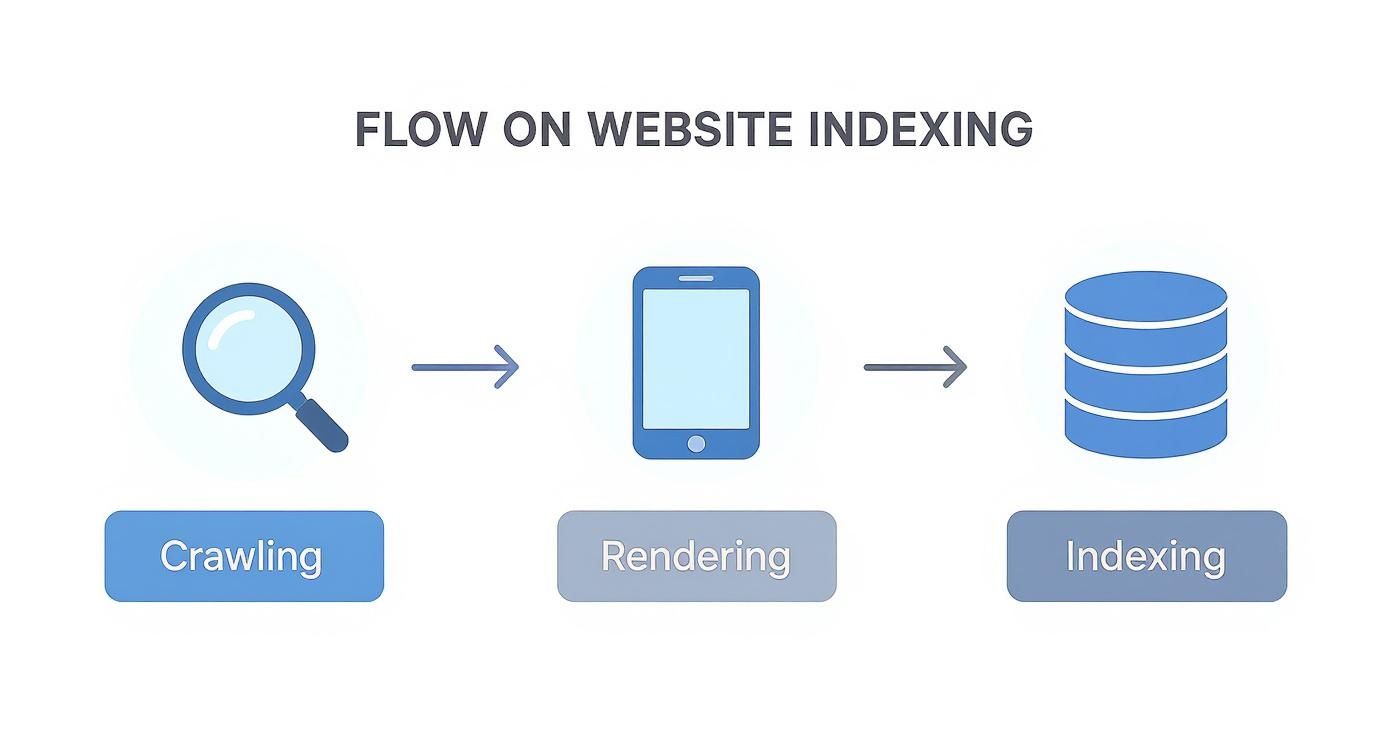
Each step is a building block, turning your new page into an entry in Google's massive digital library.
Green Lights: Signals That Encourage Indexing
First, let's look at the "green lights"—the signals you can send to actively encourage search engines to find and index your pages. Think of these as a welcome mat and a clear map for crawlers. Making their job easier is always a good thing, and it often means your content gets indexed faster.
Here are the two most powerful tools at your disposal:
- XML Sitemaps: This is a simple file that lists out every important URL on your website. When you submit your sitemap to Google Search Console, you’re essentially handing Google a blueprint of your entire site. It’s the best way to make sure no important pages get overlooked.
- Internal Links: Every time you link from one page on your site to another, you’re building a pathway for crawlers to follow. A smart internal linking structure not only helps users find related content but also guides bots from well-known pages to your newest articles and landing pages. Our guide on site architecture for SEO goes deep on how to build these pathways for maximum impact.
Red Lights: Directives to Block or Guide Crawlers
Just as important as showing Google what to index is telling it what not to. There are always pages you don't want showing up in search results—think internal admin pages, temporary landing pages, or draft blog posts. Blocking these keeps your public-facing sitemap clean, focused, and full of high-value content.
It's a smart move to keep low-value pages out of Google's index. This focuses the crawler's attention on your quality content, which can boost your site’s overall authority and ranking potential.
Here are the most common "red light" signals you can use. Each one has a different job, giving you precise control over how search engines interact with your pages.
To give you a clearer picture, this table breaks down the common directives and what they do.
Common Indexing Directives and Their Functions
These directives are your core tools for managing crawl behavior. By using them correctly, you can ensure that only your best, most relevant pages make it into the search results.
And remember, a faster site is a more crawlable site. Speed directly impacts how efficiently Google can explore your pages, so spending time on optimizing Webflow site speed is another way to help your SEO efforts.
How to Check If Your Site Is Actually on Google
You’ve poured hours into designing and building your Webflow pages, and you’ve finally hit publish. But here’s the thing: just because your site is live doesn't mean it’s in Google's library. Are your pages actually showing up in search results?
You have to be proactive about this. Checking your site’s indexing status is the first step in troubleshooting why a page isn't getting the traffic you expected. Thankfully, you don’t have to fly blind. There are a couple of straightforward ways to see your site through Google’s eyes and catch problems before they spiral.
The Quick-and-Dirty Check: The site: Operator
For a fast, high-level snapshot, the site: operator is your best friend. It’s a simple Google search command that gives you a rough idea of which pages from your domain Google has stored in its index.
Just head over to Google and type site:yourdomain.com into the search bar (swapping in your own Webflow site’s URL, of course). The search results will show you a list of every page Google has on file for your domain.
If you see a healthy list of your key pages, that’s a good sign. If you see only a handful—or worse, none at all—that’s a major red flag that something is blocking Google from indexing your content. This trick is great for a quick pulse check, but for a real diagnosis, you need to go deeper.
Your Go-To Tool: Google Search Console
The most accurate and detailed information you can get comes straight from the source: Google Search Console (GSC). If you're serious about your website, using this free platform is non-negotiable. Think of it as your direct line to Google, giving you an inside look at your site’s health, performance, and visibility.
Setting up GSC is the first real step in monitoring your site's indexing. Once you verify your Webflow site, you unlock a whole suite of reports that show you exactly how Google is interacting with your pages.
From search performance graphs to nitty-gritty page errors, GSC gives you the raw data you need to make smart, informed decisions instead of just guessing.
Making Sense of the Index Coverage Report
Inside GSC, the Index Coverage report is your command center for all things indexing. It neatly sorts all the URLs on your site into four main buckets:
- Error: These pages have a critical issue preventing them from being indexed. They need your immediate attention.
- Valid with warnings: These pages are indexed, but Google has spotted a potential issue you should look into.
- Valid: Success! These pages are indexed and on Google. This is where you want all your important content to live.
- Excluded: These are pages Google has decided not to index, either because you told it not to (with a "noindex" tag) or for other reasons.
One of the most common—and frustrating—statuses you’ll encounter is "Discovered - currently not indexed." This means Google knows your page exists but hasn't gotten around to crawling and indexing it yet. This often happens when Google's crawlers decide the page isn't valuable enough or their "crawl budget" is being used on other, more important pages on your site.
Getting comfortable with these reports is a fundamental part of any good SEO checkup. If you want to learn how to put this all together, check out our guide on how to do an SEO audit.
Website indexing is the gatekeeper to online visibility. With Google organic search driving over half of all web traffic, not being in the index means missing out on a massive potential audience. Learn more about the critical role search plays in global web traffic.
Actionable Indexing Tutorials for Your Webflow Site
All the theory is great, but now it’s time to roll up our sleeves and get things done right inside the Webflow dashboard. You don’t need to be a developer to manage your site’s indexing signals—you just need to know where to find the right settings.
Think of this section as your hands-on guide to telling search engines exactly how to see your site, all from within Webflow. We’ll cover the essential skills every Webflow site owner should have, from flipping the main switch that makes your site visible to selectively hiding specific pages. These are the actions that put you back in the driver's seat.
Enabling Site-Wide Indexing
First things first: we have to make sure the main "Go Live" switch is on. If this setting is disabled, you’re basically hanging a "Do Not Enter" sign on your entire website. Nothing will get indexed.
Here’s the quick check to make sure you’re open for business:
- Head over to your Site settings from the Webflow dashboard.
- Click on the Publishing tab.
- Scroll down to the Advanced publishing options section and look for a toggle labeled Disable Webflow subdomain indexing.
- Ensure this switch is OFF. Turning it off gives Google the green light to crawl and index your live site.
This one toggle is the most critical step. If it’s accidentally left on, even the most perfectly crafted sitemap won't get your pages indexed on your custom domain.
Hiding Specific Pages with Noindex
Not every page on your site is meant for public consumption. Think about "thank you" pages, internal drafts, or admin-only areas. For these, the noindex tag is the perfect tool.
Here’s how you add a noindex tag to any page in Webflow:
- Open the Pages Panel (the icon on the left-hand menu).
- Find the page you want to hide, hover over it, and click the little Settings gear icon.
- Scroll down until you find the Custom Code section.
- In the box that says Inside tag, paste this exact code snippet:
<meta name="robots" content="noindex"> - Hit Save and remember to republish your site for the changes to take effect.
This simple tag tells Google, "Feel free to look at this page, but please don't show it in your search results." It’s a polite way of keeping things private.
Quick tip: Blocking a page in your robots.txt file is not the same as using a noindex tag. Blocking stops Google from crawling the page entirely, while noindex allows crawling but prevents indexing. For hiding a single page from search results, noindex is almost always the better choice.
Finding and Submitting Your Sitemap
Your XML sitemap is essentially a road map you hand to search engines, pointing out all the important URLs you want them to visit. The good news? Webflow automatically generates and updates one for you.
You can always find your sitemap at yourdomain.com/sitemap.xml.
Once you have that URL, the next step is to submit it to Google Search Console. This simple act gives Google a clear to-do list, helping it discover your key content much faster. Of course, a great sitemap works best when your site structure is logical, which is why it’s also smart to brush up on your internal linking strategy to see how it all fits together.
Troubleshooting Common Indexing Problems
It’s a frustrating feeling. You’ve poured hours into a new page, hit publish, and… nothing. It’s not showing up in search results, almost like it doesn't exist. When this happens, it's time to put on your detective hat and figure out what’s going on.
Most of the time, indexing problems come down to a handful of common, often accidental, issues. Think of it as leaving a "Do Not Disturb" sign on your door when you're actually waiting for visitors. Knowing where to look for these signs is the first step to fixing the problem.
The number one culprit? A simple, unintentional instruction telling Google to ignore the page. A rogue noindex tag mistakenly added to a page's code or a single incorrect line in your robots.txt file can render your content completely invisible to search engines. That’s why your first move should always be to double-check these settings, especially if you've recently launched a new site or gone through a redesign.
Diagnosing Deeper Issues
If all your "go away" signals are turned off and the page still isn't indexed, the problem might be a bit more nuanced. Search engines operate on a tight schedule and budget—what we call a crawl budget. They simply don't have the time or resources to crawl every single page on the internet, so they prioritize.
Here are a few things that might be telling Google to skip your page:
- Low-Quality or Thin Content: Google's main goal is to provide valuable, original answers to searchers. If your page is sparse on useful information, rehashes content from other sites, or is mostly just a list of links, Google might decide it’s not worth adding to its index.
- Server Errors: Imagine Googlebot knocks on your page's door and gets a 5xx server error. It can't see what's inside. If this happens repeatedly, Google assumes your site is unreliable and might stop trying to visit altogether, which can impact your entire site's indexing.
- Duplicate Content Issues: When Google finds what looks like the same page at multiple URLs, it gets confused. Without a clear canonical tag telling it which version is the "real" one, it might just throw up its hands and index none of them.
Remember, indexing isn't a right—it's earned. Just because a page is published doesn't mean Google has to list it. Your job is to make your content so easy to find, so accessible, and so valuable that indexing it is a no-brainer for them.
By working through these potential issues methodically—starting with the easy technical checks and then moving on to content quality—you can almost always uncover what’s holding your page back. Once you solve the mystery, you can finally get your content in front of the people who need to see it.
Frequently Asked Questions About Indexing
Let's tackle a couple of the most common questions we hear from Webflow site owners about getting their pages indexed. Having clear, no-nonsense answers helps you know what to expect and where to focus your energy.
How Long Does Indexing Usually Take?
This is the big one: "How long until my new page shows up on Google?" The honest-to-goodness answer is, it depends. Indexing isn't instant and can take anywhere from a few days to several weeks.
What causes such a wide range? A few key things are at play:
- Site Authority: Older, more established websites with a solid reputation for quality content tend to get crawled more frequently. This means Google discovers and indexes their new pages faster.
- Crawl Budget: Google doesn't have unlimited resources, so it allocates a "crawl budget" for every site. If your site is massive or has a lot of low-value pages, Google's crawlers might take their time getting to your new stuff.
- Sitemap Submission: Submitting a clean, up-to-date XML sitemap through Google Search Console is like handing Google a map to your new content. It drastically speeds up the discovery process.
Can You Force Google to Index a Page Faster?
You can't exactly force Google to do anything, but you can definitely give it a strong hint. Your go-to tool for this is the URL Inspection Tool inside Google Search Console.
When you plug a URL into this tool and hit "Request Indexing," you're essentially telling Google, "Hey, this is new and important, please take a look." This bumps your page up into a priority queue for crawling. More often than not, this can get your page indexed within a day or two, though it's never a 100% guarantee. It's best used for brand-new, high-value pages or after you've made major updates to an existing one.
Being indexed is not the same as ranking. Indexing simply means your page has been added to Google's massive library. Ranking is about how high up on the shelf that page appears when someone searches for something relevant. Indexing gets you in the door; ranking is the long-term game.
Once your Webflow pages are in Google's index, they have a chance to show up in search results. That's when the real work of climbing the rankings truly begins.
Ready to turn your Webflow site into a revenue engine? At Block Studio, we combine design, development, and SEO to drive real growth. Stop juggling multiple agencies and let our unified team build a system that attracts qualified traffic and converts visitors into leads. Learn how Block Studio can transform your website.